
SQL Query in (Un)Perplexed Spready — Your Spreadsheet Is Now a Database
Introduction
(Un)Perplexed Spready is a spreadsheet application that combines the power of traditional spreadsheets with advanced artificial intelligence capabilities. Version 1.2.X represents the biggest leap in the application's history, bringing a range of features that elevate data work to an entirely new level.
This version introduces four major improvement areas: Web Search, Vision & Document Processing, SQL Query, and Advanced Statistics.
Best of all, SQL Query and Advanced Statistics functions are completely free! If you are looking for a free statistical software, you are on the right page!
Spreadsheet applications are excellent for smaller datasets and ad-hoc analyses. But when you need to join data from multiple sheets, filter by complex criteria, or calculate aggregates — traditional formulas become complicated and hard to maintain.
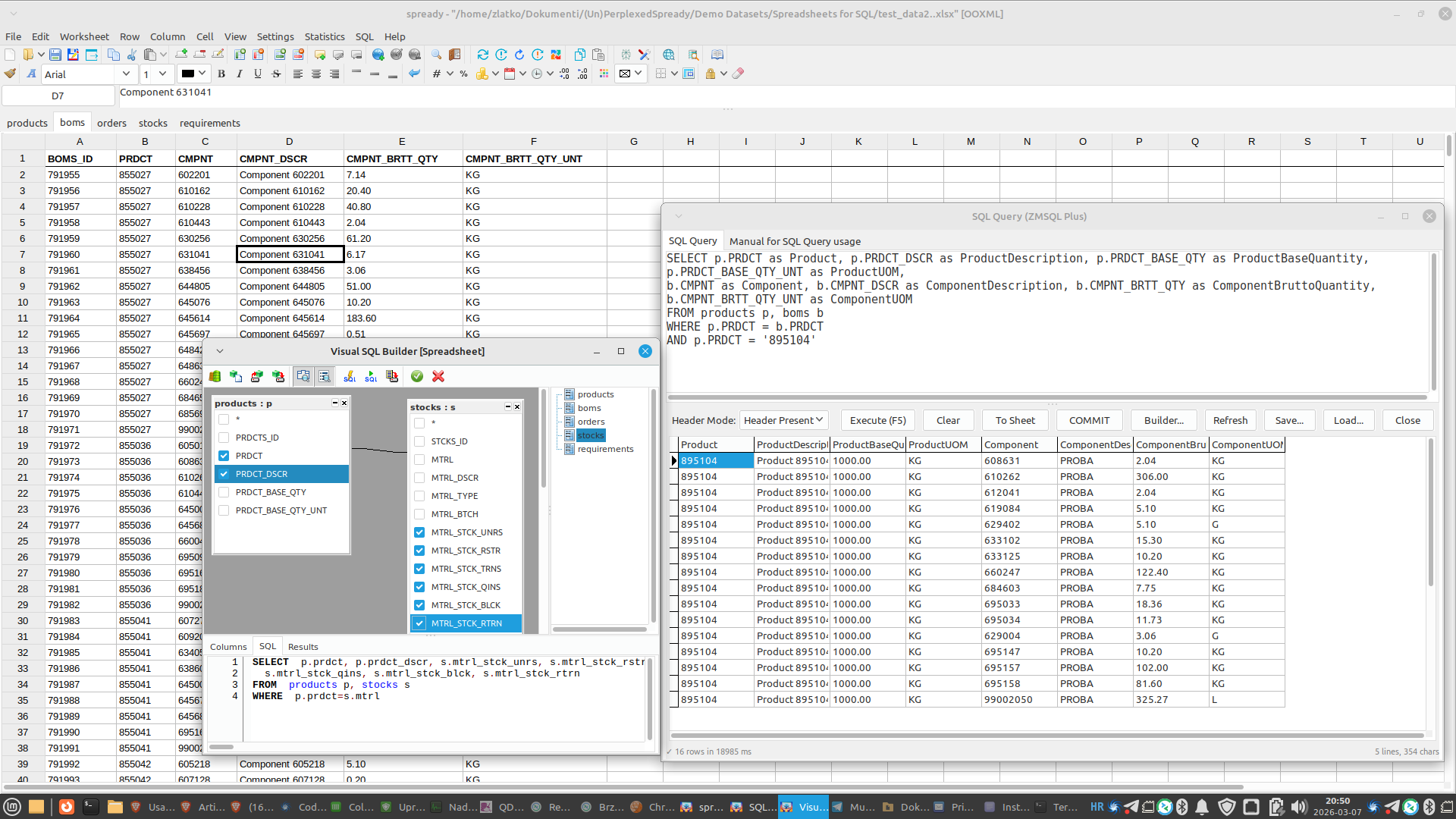
(Un)Perplexed Spready v1.2.X introduces SQL Query functionality — every sheet in your workbook becomes a SQL table, and you can write standard SQL queries for data analysis.
Best of all: SQL Query is FREE — forever!
Workbook-as-Database Architecture
(Un)Perplexed Spready treats your entire workbook as a database:
- Each sheet = One SQL table
- Sheet name = Table name
- First row = Column headers (field names)
- Subsequent rows = Data records

Example:
Sheet "Sales":
| Product | Quantity | Price | Date |
|---|---|---|---|
| Widget A | 100 | 25.00 | 2026-01-15 |
| Widget B | 50 | 40.00 | 2026-01-16 |
SQL query:
SELECT Product, SUM(Quantity) as Total

FROM Sales

GROUP BY Product

ORDER BY Total DESC
How to Use
Opening the SQL Query Window
- Open (Un)Perplexed Spready
- Load or create a workbook with data
- Click Tools → SQL Query from the menu
SQL Query Window Contains:
- SQL Editor (top) — Write and edit SQL queries
- Results Grid (bottom) — Display results
- Toolbar — Quick access to functions
Toolbar Functions:

- Execute (F5) — Run SQL query
- Clear — Clear editor
- Export to Sheet — Export results to new sheet
- Save Query — Save SQL to file (.sql)
- Load Query — Load SQL from file
- Query Builder — Visual query builder
- COMMIT - used for saving update query result back into source spreadsheet
Supported SQL Commands
SELECT — Retrieving Data
-- Basic SELECT

SELECT * FROM Sales
-- Selected columns

SELECT Product, Quantity, Price FROM Sales
-- Filtering

SELECT * FROM Sales WHERE Quantity > 100
-- Sorting

SELECT * FROM Sales ORDER BY Date DESC
-- Limit

SELECT * FROM Sales LIMIT 10
JOIN — Joining Tables
-- Join two sheets

SELECT p.Product, p.Quantity, c.Category

FROM Sales p

JOIN Catalog c ON p.Product = c.Product
-- LEFT JOIN

SELECT p.Product, p.Quantity, c.Category

FROM Sales p

LEFT JOIN Catalog c ON p.Product = c.Product
Aggregations
-- COUNT

SELECT COUNT(*) as Row_Count FROM Sales
-- SUM

SELECT Product, SUM(Quantity) as Total

FROM Sales

GROUP BY Product
-- AVG

SELECT AVG(Price) as Average_Price FROM Sales
-- MIN / MAX

SELECT MIN(Date) as From_Date, MAX(Date) as To_Date FROM Sales
-- GROUP BY with HAVING

SELECT Product, SUM(Quantity) as Total

FROM Sales

GROUP BY Product

HAVING SUM(Quantity) > 100
INSERT, UPDATE, DELETE
-- INSERT

INSERT INTO Sales (Product, Quantity, Price, Date)

VALUES ('Widget D', 75, 30.00, '2026-01-18')
-- UPDATE

UPDATE Sales SET Price = 28.00 WHERE Product = 'Widget A'
-- DELETE

DELETE FROM Sales WHERE Quantity < 50
Important: Changes are executed in memory. To save them permanently, use COMMIT or export results to a new sheet.
Writing Changes to Sheets
All changes are executed in memory, not directly on sheets. For permanent saving:
Option 1: COMMIT
COMMIT
Saves all modified tables back to the workbook.
NOTE: JanSQL was originally designed to work with csv files inside a folder. In order to actually commit changes inside (Un)Perplexed Spready spreadsheet, you need to additionally click "COMMIT" button in GUI. So, two-step commit is reuiqred: commit statement inside SQL commits change to a dataset in memory, while commit button commits it back into underlying spreadsheet file. To persist changes, you also need to save the spreadsheet.

Option 2: SAVE TABLE
SAVE TABLE Results AS New_Sheet
Saves query result as a new sheet.
Option 3: Export to Sheet
Click the Export to Sheet button in the toolbar. Results are saved to a new sheet.
Real-World Examples
Sales Analysis
-- Monthly sales by product

SELECT

   Product,

   strftime('%Y-%m', Date) as Month,

   SUM(Quantity) as Total_Quantity,

   SUM(Quantity * Price) as Total_Revenue

FROM Sales

GROUP BY Product, strftime('%Y-%m', Date)

ORDER BY Month, Total_Revenue DESC
Inventory with Catalog
-- Current inventory with product info

SELECT

   i.Product,

   c.Category,

   c.Supplier,

   i.Quantity,

   i.Quantity * c.Cost_Price as Value

FROM Inventory i

JOIN Catalog c ON i.Product = c.Product

WHERE i.Quantity > 0

ORDER BY Value DESC
Customer 360
-- Complete customer overview

SELECT

   c.Name,

   c.Surname,

   COUNT(o.ID) as Order_Count,

   SUM(o.Total) as Total_Spent,

   MAX(o.Date) as Last_Order

FROM Customers c

LEFT JOIN Orders o ON c.ID = o.Customer_ID

GROUP BY c.ID

ORDER BY Total_Spent DESC
QC Analysis
-- Defects by line and cause

SELECT

   Line,

   Cause,

   COUNT(*) as Defect_Count,

   ROUND(COUNT(*) * 100.0 / (SELECT COUNT(*) FROM Defects), 2) as Percentage

FROM Defects

WHERE Date >= '2026-01-01'

GROUP BY Line, Cause

ORDER BY Defect_Count DESC
SQL Editor Features
Syntax Highlighting
SQL keywords are colored for easier reading:
SELECT,FROM,WHERE— blueAND,OR,NOT— orangeCOUNT,SUM,AVG— green- Strings — red
Auto-Complete
Press Ctrl+Space for:
- SQL keywords
- Table names (sheets)
- Column names
Helper Lists
- Tables list — All available sheets
- Fields list — Columns of selected table
- Operators list — SQL operators
Working with Dates
janSQL does not use strong data types — everything is string. For working with dates, use ISO 8601 format:
- Date:
YYYY-MM-DD(e.g.,2026-03-04) - Date and time:
YYYY-MM-DDThh:mm:ss(e.g.,2026-03-04T14:30:00)
-- Filter by date

SELECT * FROM Sales WHERE Date >= '2026-01-01'
-- Date range

SELECT * FROM Sales

WHERE Date BETWEEN '2026-01-01' AND '2026-01-31'
-- Extract month

SELECT strftime('%Y-%m', Date) as Month FROM Sales
Credits
SQL Query functionality is based on the proven janSQL engine (by Jan Verhoeven, http://jansfreeware.com), the same engine used in ZMSQL package and MightyQuery software.
Thanks to Jan Verhoeven for contributing to the open-source community!
Technical Details
Performance
- In-memory processing — Everything runs in memory for speed
- Semi-compiled expressions — Optimized expression evaluation
- No server required — No need to install a database
Limitations
- Single-user — One user at a time
- No transactions — No ACID transactions
- Limited JOIN types — Basic JOIN types supported
Supported File Formats
- .xlsx — Microsoft Excel
- .ods — LibreOffice/OpenOffice
- .csv — Comma-separated values
Download SQL Query Manual
You can download corresponding manuals here:
https://matasoft.hr/SQL_User_Manual.pdf
https://matasoft.hr/janSql-hlp.pdf
Conclusion
SQL Query in (Un)Perplexed Spready brings the power of SQL directly to your spreadsheet. No server, no configuration, no additional costs.
Whether you need to join data from multiple sheets, filter by complex criteria, or calculate aggregates — SQL does it elegantly and efficiently.
SQL Query in (Un)Perplexed Spready is and will always be FREE!
© 2026 Matasoft.
Further Reading
(Un)Perplexed Spready v1.2.X — A New Chapter in AI-Powered Spreadsheets
Introduction to (Un)Perplexed Spready
Download (Un)Perplexed Spready
Purchase License for (Un)Perplexed Spready
