
(Un)Perplexed Spready
- Details
- Written by Super User
- Category: (Un)Perplexed Spready
Try (Un)Perplexed Spready for Free: AI Spreadsheets Without Barriers
Introduction
At Matasoft, we have always believed that the best way to understand a tool is to use it on your own data. Demos and tutorials are helpful, but nothing beats the moment when you type a formula into your own spreadsheet and watch an AI model fetch, analyse, and summarise real information right before your eyes.
Until now, trying (Un)Perplexed Spready's AI features required either a license key or a local Ollama installation. With version 1.3.0, that changes. We are introducing a freemium tier that lets anyone use the full set of AI spreadsheet formulas -- without a license, without a credit card, and without any software installation beyond (Un)Perplexed Spready itself.
In this article, we explain what the freemium tier includes, how it works, and the two paths you can take to start experimenting today -- one for users who want to install their own local AI model, and one for users who just want to type a formula and see results immediately.
What Is the Freemium Tier?
Starting with version 1.3.0, (Un)Perplexed Spready no longer blocks AI formulas when no license key is present. Instead, unlicensed users receive a daily quota of 500 AI calculations -- completely free of charge. Once the quota is reached, formulas return a clear #LIMIT message indicating that the daily limit has been reached. The counter resets automatically at midnight.
A new status bar at the bottom of the main window shows your current usage in real time:
Free tier: 47/500 AI calculations today-- normal usageFree tier: 460/500 — approaching daily limit-- when you reach 90%License: Active (unlimited)-- after you enter a license key
When you enter a valid license key (via Help → About → Enter License), the quota is removed entirely and the status bar switches to License: Active (unlimited). Spready will also offer to recalculate any cells that previously returned #LIMIT so you can pick up right where you left off.
Which formulas are included? All of them. The freemium quota covers every AI-powered formula family:
=PERPLEXITY1/2/3/4/5()-- Perplexity AI (up to 5 input ranges)=ASK_LOCAL1/2/3/4/5()-- locally installed AI models (up to 5 input ranges)=ASK_REMOTE1/2/3/4/5()-- AI model hosted on Matasoft's server (up to 5 input ranges)=ASK_LOCAL_WEB1/2/3/4/5()-- local AI with web search (up to 5 input ranges)=ASK_REMOTE_WEB1/2/3/4/5()-- remote AI with web search (up to 5 input ranges)=WEBSEARCH()/=WEBSEARCH1()-- direct web search with AI summarisation
Every formula that a licensed user can run, a free-tier user can run too -- just with the daily limit.
Two Paths to Get Started
There are two ways to power the AI formulas in (Un)Perplexed Spready. You can use either one -- or both -- depending on your needs and technical comfort level.
| Path | Formula Family | What You Need | Best For |
|---|---|---|---|
| Path 1: Bring Your Own AI | =ASK_LOCAL*()=ASK_LOCAL_WEB*() |
Install Ollama on your computer and download any model that fits your hardware (Mistral 7B, DeepSeek, Llama, GLM, and many more). Point Spready at localhost:11434 in Settings → Ask Local API Settings. |
Privacy-conscious users, developers, and anyone who wants full control over the model, the data, and the cost. Everything runs on your machine -- no data ever leaves your computer. |
| Path 2: Use Our Server | =ASK_REMOTE*()=ASK_REMOTE_WEB*() |
Nothing. No Ollama installation, no API keys, no configuration. The =ASK_REMOTE formulas are pre-configured to use an AI model hosted on Matasoft's server, accessible over a secure HTTPS connection. Just type the formula and press Enter. |
Users who want to evaluate the product instantly -- zero setup, zero installation, zero cost. Perfect for trying the demo spreadsheets and exploring what AI-powered spreadsheets can do. |
Path 1: Install Your Own Ollama (ASK_LOCAL)
If you want full control -- and you are comfortable installing software on your machine -- this is the path for you. Ollama is a free, open-source tool that runs AI models locally. Installation takes minutes:
- Download Ollama from https://ollama.com/ (available for Windows, macOS, and Linux)
- Open a terminal and run:
ollama pull mistral7b(or any model you prefer) - In (Un)Perplexed Spready, go to Settings → Ask Local API Settings and confirm the URL is set to
http://localhost:11434/api/chat - Type
=ASK_LOCAL1(A2, "Summarise this in one sentence")in any cell
That's it. The model runs entirely on your computer. No internet connection is required for the AI itself (only for web search formulas). Your data never leaves your machine. And thanks to the freemium tier, you can do this up to 500 times per day without a license.
Modern small models like Mistral 7B, DeepSeek-1:7B, and Llama can run even on modest hardware. Ollama handles the model lifecycle -- you just pull a model and start using it.
Path 2: Use Our Server, No Installation Required (ASK_REMOTE)
If you just want to see what an AI-powered spreadsheet can do -- without installing anything beyond (Un)Perplexed Spready itself -- the =ASK_REMOTE family is your starting point.
These formulas are pre-configured to use an AI model hosted on Matasoft's server. The connection is encrypted via HTTPS. You do not need an API key, you do not need to configure any settings, and you do not need to install Ollama or any other software. Just type the formula:
=ASK_REMOTE1(A2, "What industry does this company operate in?")
Press Enter, and the cell will display the AI's answer within seconds. The =ASK_REMOTE_WEB variants add web search capability -- the model can search the internet for up-to-date information before answering.
Note: The Matasoft-hosted model is intended for evaluation and testing, not for production workloads. The hosting server has limited hardware, so calculations may be slower than a local model. For sustained use, we recommend installing your own Ollama (Path 1) or subscribing to Ollama Cloud.
How the Daily Quota Works
The freemium quota is designed to be generous enough for genuine evaluation while preventing automated abuse. Here are the details:
| Aspect | Detail |
|---|---|
| Daily limit | 500 AI calculations per day (resets at midnight, local time) |
| What counts as one calculation? | Each formula evaluation that reaches the AI model counts as one. Deferred calculations (when Defer Calculation is enabled) do not consume quota. Formula errors and argument-validation failures do not consume quota. |
| What happens at the limit? | The cell shows #LIMIT: Daily free limit reached (500 AI calculations per day). Please upgrade to premium for unlimited usage. |
| Quota tracking | The counter is stored locally in a usage file on your machine. It is not sent to any server. A checksum protects against manual tampering. |
| Licensed users | No quota. Licensed users have unlimited AI calculations with no daily limit. |
When you open a spreadsheet with many AI formulas, Spready's Defer Calculation feature is active by default. This means formulas are not evaluated automatically on file open -- they wait for you to trigger a recalculation explicitly. This prevents accidentally consuming your entire daily quota when opening a large spreadsheet.
What About Web Search?
Web search formulas (=ASK_LOCAL_WEB, =ASK_REMOTE_WEB, and =WEBSEARCH) are also included in the freemium tier. Each web-search-enabled formula evaluation counts as one calculation against your daily quota.
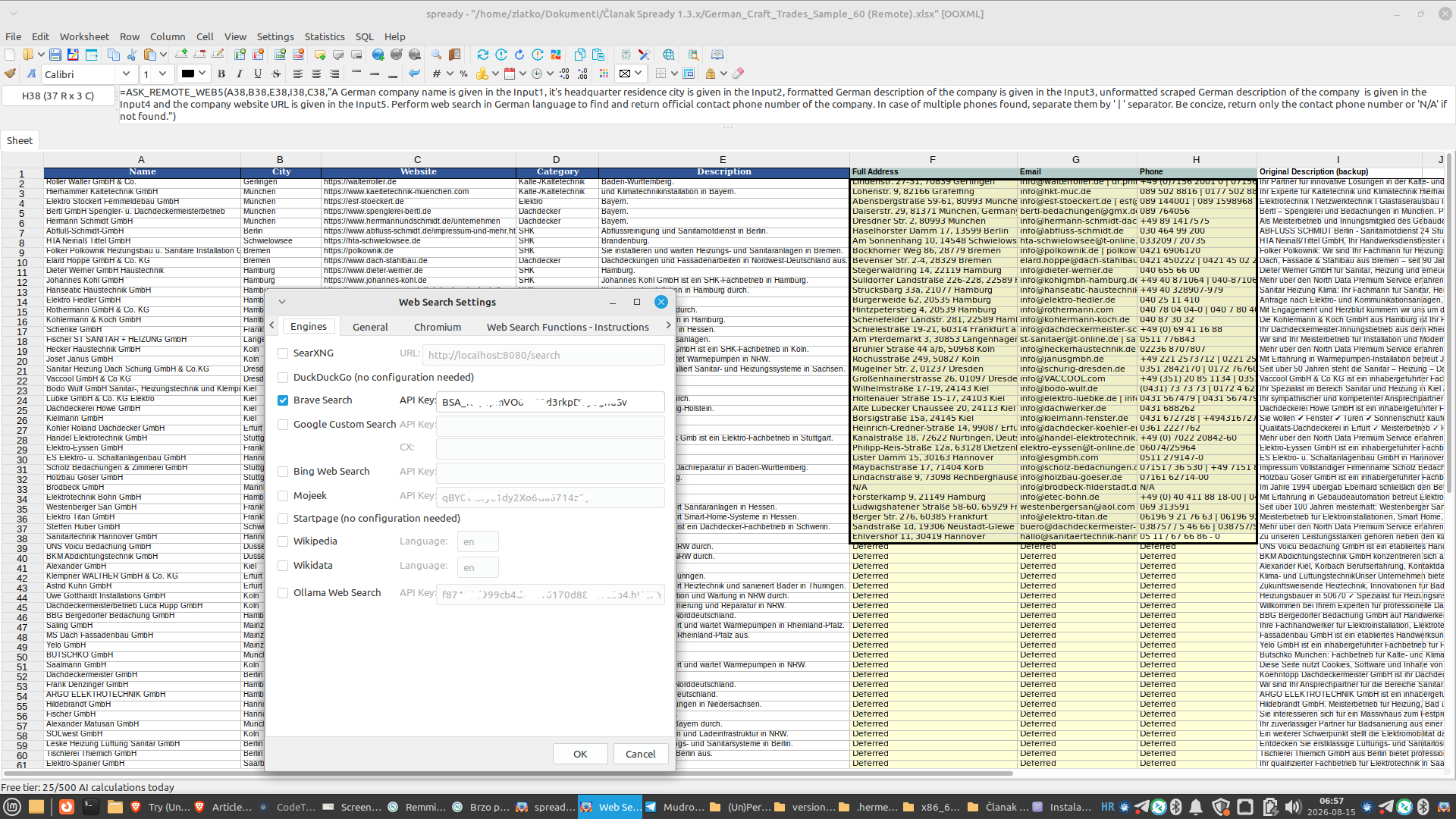
For =ASK_LOCAL_WEB formulas, you will need to configure at least one web search engine in Settings → Web Search Settings. Spready supports nine built-in engines (SearXNG, Brave Search, DuckDuckGo, Google CSE, Bing, Mojeek, Startpage, Wikipedia, and Wikidata), plus Ollama Web Search for Ollama Cloud subscribers. Read our previous article for a detailed comparison: Web Search Features in (Un)Perplexed Spready.
For =ASK_REMOTE_WEB formulas, web search is handled on the Matasoft server side -- no additional configuration needed.
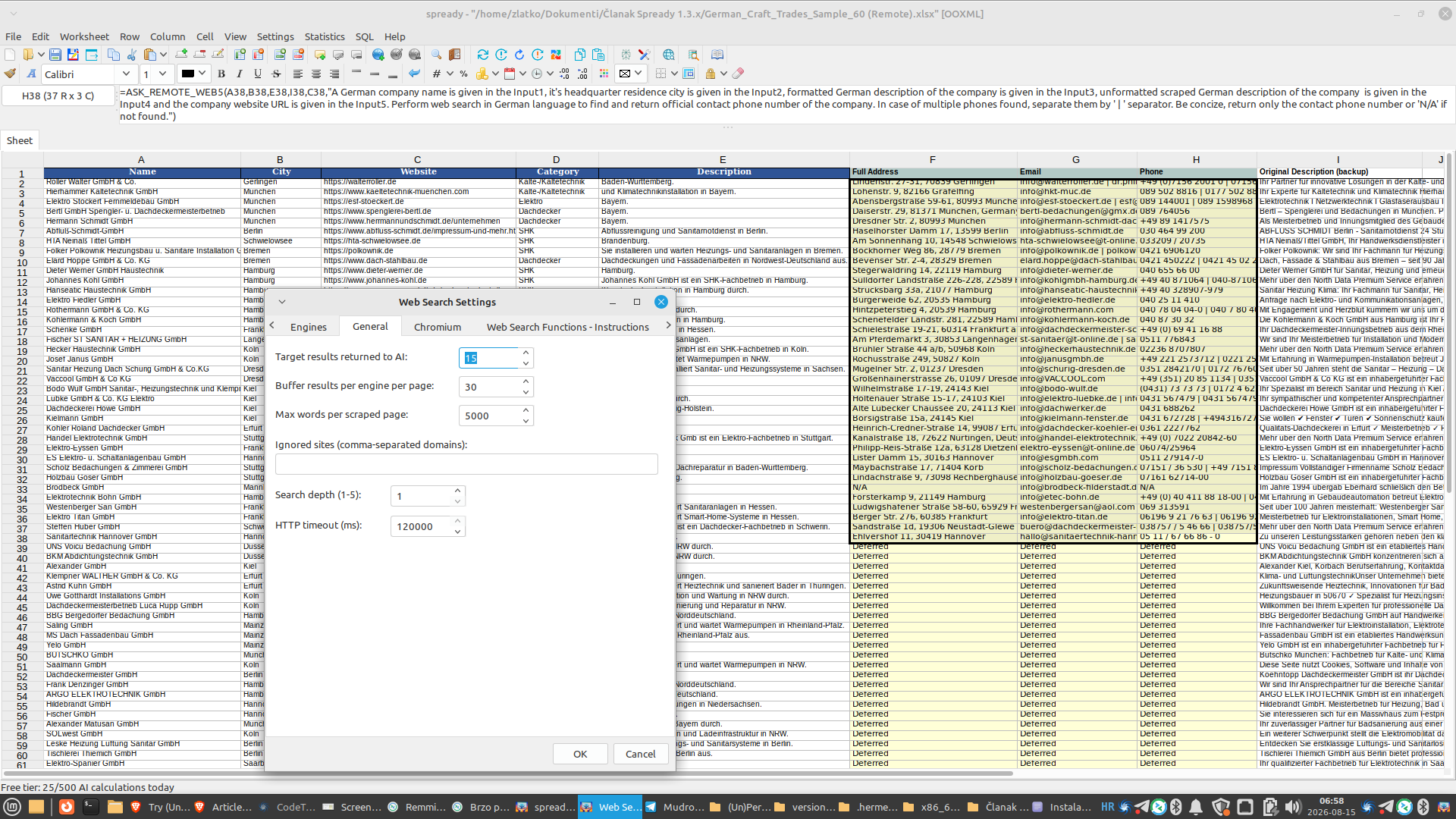
Demonstration: Enriching German Craft Trades Data with =ASK_LOCAL_WEB5 and =ASK_REMOTE_WEB5
To show how the freemium tier works in practice, we prepared a demonstration spreadsheet containing 60 German craft trade companies -- real businesses from trades such as refrigeration, electrical, roofing, plumbing, and HVAC. The goal: enrich each company's record with its full physical address, email contact, and phone number, using only the company name, city, website URL, and two description fields as input.
We ran the same spreadsheet twice -- once with =ASK_LOCAL_WEB5 (using a locally installed Ollama model) and once with =ASK_REMOTE_WEB5 (using the Matasoft-hosted model). Both variants produced identical results -- the only difference was the AI endpoint.
Screenshot with locally installed Ollama and ASK_LOCAL_WEB formulas used: 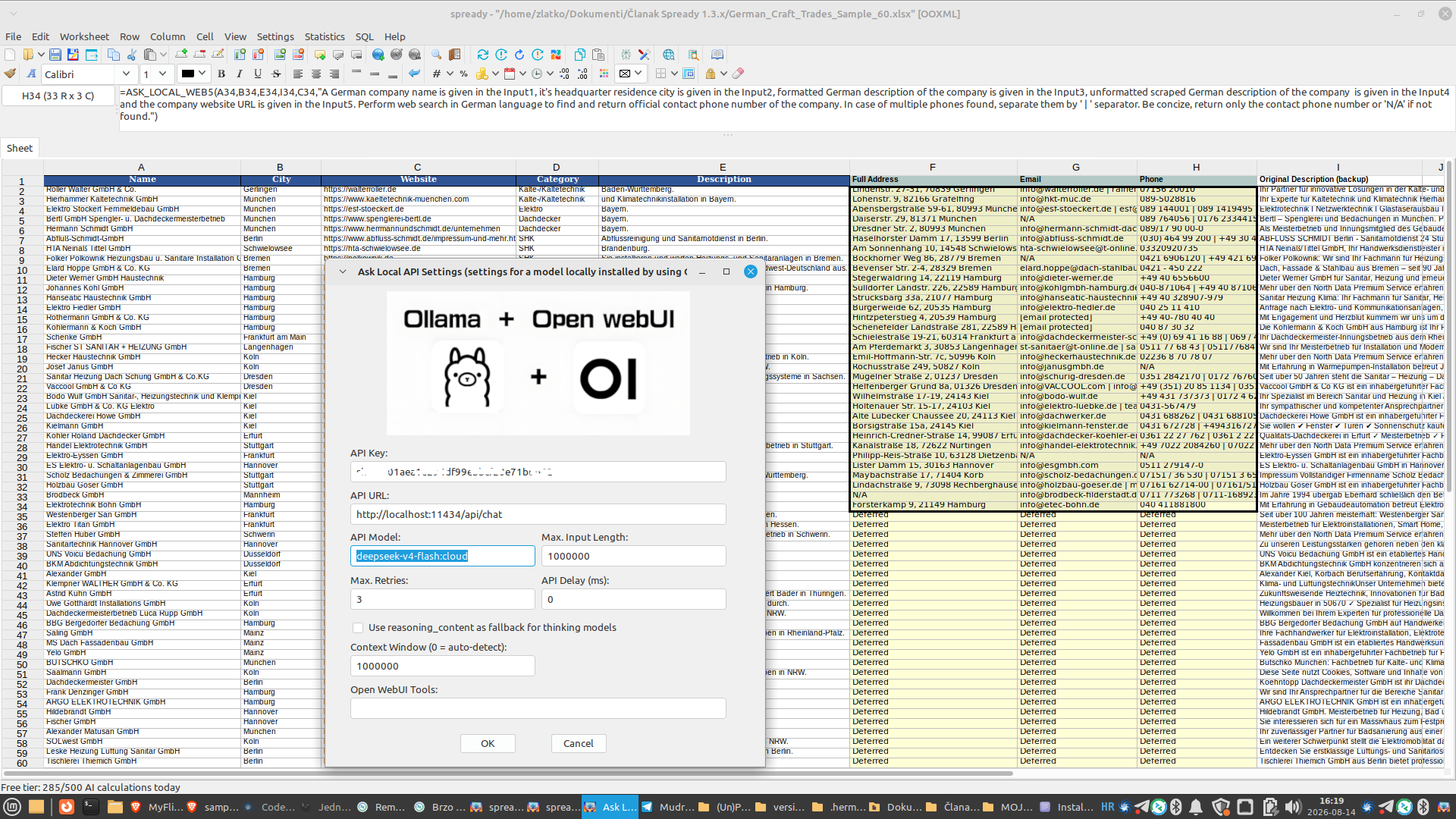
Screenshot with ASK_REMOTE_WEB formulas used (Ollama installed on our server):
The Spreadsheet Structure
The spreadsheet contains 60 rows (one per company) and 9 columns:
| Column | Header | Source |
|---|---|---|
| A | Name | User input -- company name (e.g., Roller Walter GmbH & Co.) |
| B | City | User input -- headquarters city (e.g., Gerlingen) |
| C | Website | User input -- known website URL (e.g., https://walterroller.de) |
| D | Category | User input -- trade category (e.g., Kälte-/Kältetechnik) |
| E | Description | User input -- formatted German company description |
| F | Full Address | AI-generated -- formula in column F |
| G | AI-generated -- formula in column G | |
| H | Phone | AI-generated -- formula in column H |
| I | Original Description (backup) | User input -- raw scraped German description (unformatted) |
The Formulas
Columns F, G, and H each contain an AI formula that passes five input ranges to the model. This is the =ASK_LOCAL_WEB5 variant -- the highest-input formula in the family, accepting up to 5 cell ranges plus a prompt string:
Column F -- Full Address (ASK_LOCAL_WEB5)
=ASK_LOCAL_WEB5(A2, B2, E2, I2, C2, "A German company name is given in the Input1, it's headquarter residence city is given in the Input2, formatted German description of the company is given in the Input3, unformatted scraped German description of the company is given in the Input4 and the company website URL is given in the Input5. Perform web search in German language to find and return official physical address of the company headquarter. Be concise, return only the full physical address of the company or 'N/A' if not found.")
Column G -- Email (ASK_LOCAL_WEB5)
=ASK_LOCAL_WEB5(A2, B2, E2, I2, C2, "A German company name is given in the Input1, it's headquarter residence city is given in the Input2, formatted German description of the company is given in the Input3, unformatted scraped German description of the company is given in the Input4 and the company website URL is given in the Input5. Perform web search in German language to find and return official email contact of the company. In case of multiple emails found, separate them by ' | ' separator. Be concise, return only the contact email accounts or 'N/A' if not found.")
Column H -- Phone (ASK_LOCAL_WEB5)
=ASK_LOCAL_WEB5(A2, B2, E2, I2, C2, "A German company name is given in the Input1, it's headquarter residence city is given in the Input2, formatted German description of the company is given in the Input3, unformatted scraped German description of the company is given in the Input4 and the company website URL is given in the Input5. Perform web search in German language to find and return official contact phone number of the company. In case of multiple phones found, separate them by ' | ' separator. Be concise, return only the contact phone number or 'N/A' if not found.")
Remote Variant -- =ASK_REMOTE_WEB5
The =ASK_REMOTE_WEB5 variant uses exactly the same syntax -- the only difference is the formula name. Simply replace ASK_LOCAL_WEB5 with ASK_REMOTE_WEB5 and the formulas will run against the Matasoft-hosted AI model instead of your local Ollama:
=ASK_REMOTE_WEB5(A2, B2, E2, I2, C2, "A German company name is given in the Input1, ...")
Understanding the Five Input Parameters
The =ASK_LOCAL_WEB5 and =ASK_REMOTE_WEB5 formulas accept five cell ranges followed by a prompt string. The model receives each range as a numbered input (Input1 through Input5) and can use all of them to decide whether a web search is needed and how to interpret the results:
| Parameter | Cell Range | Content |
|---|---|---|
| Input1 | A2 |
Company name -- the entity to look up (e.g., Roller Walter GmbH & Co.) |
| Input2 | B2 |
City -- headquarters location (e.g., Gerlingen) |
| Input3 | E2 |
Formatted description -- a clean, human-readable German company description |
| Input4 | I2 |
Original description -- raw scraped text from the company's website (unformatted) |
| Input5 | C2 |
Website URL -- the company's known homepage (e.g., https://walterroller.de) |
| Prompt | string literal | Instruction telling the AI what to search for and how to format the result |
Why five inputs? Because a company name alone is often ambiguous -- there may be dozens of businesses called Schmidt GmbH in Germany. By providing the city, both descriptions, and the website URL, the model can construct a precise search query and disambiguate results that match multiple entities. The model decides for itself whether a web search is needed -- if the answer is already available from the provided context, it can skip the search and answer directly.
How to Run This Demonstration Yourself
With the freemium tier, you can run this entire demonstration for free:
- Option A (zero setup): Download the Remote variant of the spreadsheet, open it in (Un)Perplexed Spready, and trigger a recalculation. The
=ASK_REMOTE_WEB5formulas will run against the Matasoft-hosted AI model. No Ollama installation needed. - Option B (your own AI): Download the Local variant, install Ollama with any model, and run the
=ASK_LOCAL_WEB5formulas. Everything runs on your machine.
With 60 companies × 3 formula columns = 180 AI calculations, this demonstration fits comfortably within the free daily quota of 500.
Ready to Try?
Getting started takes less than five minutes:
- Get (Un)Perplexed Spready -- you have two options:
- Download the desktop application and install it on your computer (Windows or Linux): https://matasoft.hr/QTrendControl/index.php/un-perplexed-spready/un-perplexed-spready-download
- Try online in your browser -- no installation required, use the web-hosted version of (Un)Perplexed Spready directly: https://spready.matasoft.hr/
- Install and launch the application. No license key required -- the freemium tier is active by default.
- Try a formula -- pick whichever path suits you:
- Zero setup: Type
=ASK_REMOTE1(A2, "What does this company do?")and press Enter - With your own AI: Install Ollama, then type
=ASK_LOCAL1(A2, "What does this company do?")and press Enter - Watch the status bar at the bottom of the window to track your remaining daily calculations.
- When you're ready for unlimited usage, purchase a license key from https://spready.matasoft.hr/ and enter it via Help → About → Enter License.
Conclusion
Version 1.3.0 removes the last barrier between you and AI-powered spreadsheets. Whether you want to run models privately on your own hardware with =ASK_LOCAL, or just type a formula and see results with =ASK_REMOTE -- you can start today, for free, with 500 AI calculations every day.
We can't wait to see what you build with it.
Further Reading
Matasoft Articles on (Un)Perplexed Spready
- Article #161: (Un)Perplexed Spready -- Native Web Search Explained and Demonstrated -- Web search engines, formula families, and practical comparison
- Article #150: (Un)Perplexed Spready with web search enabled Ollama models -- Phase 1: Open WebUI + SearXNG setup on Linux
- Article #152: An example of using (Un)Perplexed Spready in a real life use case - Furniture catalog taxonomy classification -- Phase 2: Matasoft Web Search and Web Reader tools
- Article #156: (Un)Perplexed Spready v1.2.X -- Web Search in (Un)Perplexed Spready -- Phase 3: Native web search with 9 engines
- Web Search Features in (Un)Perplexed Spready -- Phase 4: Ollama Web Search engine and expanded inputs
External Resources
- Ollama -- Download and install local AI models
- Ollama documentation -- Model management, API reference
Other Topics
Download (Un)Perplexed Spready v1.3.0 and start experimenting today. No license required -- just install and type a formula. Get it here: https://matasoft.hr/QTrendControl/index.php/un-perplexed-spready/un-perplexed-spready-download or try it online at https://spready.matasoft.hr/
© 2026 Matasoft. All rights reserved. (Un)Perplexed Spready is a product of Matasoft.
- Details
- Written by Super User
- Category: (Un)Perplexed Spready
Web Search Features in (Un)Perplexed Spready
Introduction
At Matasoft, we believe that technology exists to amplify human creativity, not to burden it with repetitive and tedious tasks. Yet, countless professionals still spend hours manually searching the web for information that should be automated -- looking up company websites, contact pages, regulatory data, market intelligence, and dozens of other routine lookups that the modern web was designed to expose programmatically.
(Un)Perplexed Spready is a spreadsheet application that combines the power of traditional spreadsheets with advanced AI capabilities. Version 1.2.X brought a revolutionary integration of web search directly into spreadsheet cells -- read all about it in our previous article Web Search in (Un)Perplexed Spready v1.2.X.
Recently, in version 1.2.6, we have taken the next logical step. The new release introduces:
- Ollama Web Search as a fully integrated search engine -- no middleware, no Docker containers, no Open WebUI required
- Extended input ranges for the
=ASK_LOCAL_WEBand=ASK_REMOTE_WEBformula families -- from a single input up to five inputs - Improved engine orchestration that makes the choice of search engine a one-click decision
In this article, we will demonstrate how the same spreadsheet task -- enriching a list of U.S. school districts with their official web pages -- can be performed using three different web search engines: Ollama Web Search, Brave Search, and SearXNG. The results will show the strengths and trade-offs of each engine, helping you choose the one that best fits your workflow.
The Evolution of Web Search in (Un)Perplexed Spready
Web search in Spready has evolved through four distinct phases since its introduction. Understanding this evolution helps to appreciate the design decisions behind recent enhancements and the role of each engine.
Phase 1: Open WebUI + SearXNG Middleware (Article #150: (Un)Perplexed Spready with web search enabled Ollama models)
The first web search integration required a three-service stack:
- Ollama -- local LLM runtime (or Ollama Cloud endpoint)
- Open WebUI -- chat interface that exposes a chat-completions-compatible API
- SearXNG -- self-hosted meta-search engine running in Docker
Spready would send prompts to the Open WebUI endpoint, which would forward them to Ollama. When the model decided it needed web information, it would call the web_search tool exposed by Open WebUI, which in turn would query SearXNG. This setup was fully self-hosted and privacy-friendly, but complex to install and maintain. Read the complete setup guide in (Un)Perplexed Spready with web search enabled Ollama models.
Phase 2: Matasoft Web Search and Web Reader Tools (Article #152: An example of using (Un)Perplexed Spready in a real life use case - Furniture catalog taxonomy classification)
While the Open WebUI + SearXNG stack worked, it had limitations -- most notably, page content was not fetched in a way that handled JavaScript-heavy websites well. To address this, Matasoft developed two custom Open WebUI tools:
matasoft_web_search-- SearXNG-based search with enhanced result formattingmatasoft_web_reader-- BeautifulSoup + Selenium hybrid that detects whether a page is server-rendered (HTML) or client-rendered (JavaScript SPA) and applies the appropriate fetching strategy
These tools were validated in a real-life use case: classifying 2,751 furniture catalog products into a 129-category taxonomy. The demonstration showed that with the right tools, Spready could handle production-scale data enrichment tasks. See An example of using (Un)Perplexed Spready in a real life use case - Furniture catalog taxonomy classification for the full case study.
Phase 3: Native Web Search in Spready v1.2.X (Article #156: (Un)Perplexed Spready v1.2.X -- Web Search in (Un)Perplexed Spready)
Version 1.2.X was the largest release in Spready's history. It introduced a native web search subsystem that eliminated the need for an Open WebUI middleware in most cases. Key features:
- 9 built-in search engines -- SearXNG, DuckDuckGo, Brave Search, Google Custom Search, Bing Web Search, Mojeek, Startpage, Wikipedia, Wikidata
- 3 formula families --
=WEBSEARCH(),=ASK_LOCAL_WEB(),=ASK_REMOTE_WEB() - Chromium-based page content fetching for deep page reading
- Configurable per-engine in
Settings -> Web Search Settings
Open WebUI integration remained supported as a fallback for users with existing Open WebUI deployments. For the complete v1.2.X feature walkthrough, see (Un)Perplexed Spready v1.2.X -- Web Search in (Un)Perplexed Spready.
Phase 4: Ollama Web Search Engine and Expanded Inputs (v1.2.6, This Article)
Version 1.2.6 brings two key additions:
- Ollama Web Search as a first-class engine -- When your Ollama endpoint supports it, Spready can request web search results directly from Ollama's runtime without any external service. The integration is a single checkbox in
Settings -> Web Search Settings. - Five-input range variants --
=ASK_LOCAL_WEB2(),=ASK_LOCAL_WEB3(),=ASK_LOCAL_WEB4(),=ASK_LOCAL_WEB5()(and corresponding=ASK_REMOTE_WEB*()variants) allow the model to consider up to five context fields when deciding what to search for and how to interpret the results.
In this article we will focus on Phase 4, with a practical demonstration comparing the three most relevant engines.
What Can Web Search Do For You?
In Spready v1.2.6, every web-search-capable formula fits into five use-case families. You don't need to learn the families up-front -- the formula name tells you what to expect:
| Formula | What it does | When to use it |
|---|---|---|
=ASK_LOCAL_WEB(...)=ASK_REMOTE_WEB(...) |
Asks your AI "you may search the web if you need to". The model decides whether to search or answer from its own knowledge. Comes in six variants (0..5) for one to six input values. |
The preferred, straight-forward approach. No external web search tools needed, just (Un)Perplexed Spready and Ollama endpoint. When you want to keep things simple and use the AI endpoint (typically Ollama endpoint) directly, without setting additional layer of Open WebUI middleware and web search tools. When the user just wants an up-to-date answer and trusts the model to know when to search. This is the family we demonstrate below. |
=ASK_LOCAL(...)=ASK_REMOTE(...) |
Plain chat with the AI -- no built-in web search. But: if you connect the endpoint to an Open WebUI server and switch on tools in the settings, Open WebUI can still search the web for you behind the scenes. |
In this approach web search can be established too, but it requires additional Open WebUI middleware installation and setup. Web search runs through Open WebUI with web tools configured. Moreover, Open WebUI can bridge LLM models of other providers, not only Ollama. |
=WEBSEARCH(...) |
Always searches the web first, then asks the AI to summarise the results. The model has no say -- search is mandatory. | When you know you need fresh data and don't want to rely on the model's training knowledge. Good for "look this up" tasks where the model otherwise might guess. |
=PERPLEXITY(...) |
Sends the question straight to Perplexity.ai's cloud. Perplexity does the search and returns an answer with citations. Spready is not in the loop. | When you already have a Perplexity Pro / Max subscription and want the highest-quality synthesised answers without configuring anything on Spready's side. |
Each family comes in six variants named =FAMILY0 through =FAMILY5, accepting one to six input values (input ranges + prompt) respectively. The bare alias =ASK_LOCAL_WEB is shorthand for the single-input variant =ASK_LOCAL_WEB,.where no input ranges are given, only input prompt. Pick the variant that matches how many fields you want to feed in.
Three Ways to Get Web Search Done
Regardless of which family you pick, the actual web search is performed by one of three web search backends:
| Backend | How it works | Who's it for |
|---|---|---|
| Spready's built-in engines (SearXNG, DuckDuckGo, Brave, Google CSE, Bing, Mojeek, Startpage, Wikipedia, Wikidata) |
Spready calls one or more search engines you have enabled in Settings -> Web Search Settings -> Engines, deduplicates the results, and feeds them to the AI for summarising. | Users who want full control over the search backend -- pick the engines you trust, configure your own API keys, or self-host SearXNG for maximum privacy. |
| Ollama Web Search (paid, via Ollama Cloud) |
A shortcut that hands the search off to the Ollama runtime itself. Tick the Use Ollama Web Search box in Web Search Settings -> General and Ollama returns cited results directly. | Ollama Cloud subscribers (Pro or Max) who want the simplest setup -- no engine configuration, no API keys, results come back already cited. |
| Perplexity Cloud (paid, Perplexity.ai) |
Bypasses Spready entirely. The =PERPLEXITY* family calls Perplexity's API directly. Spready never sees the search -- Perplexity does the work and returns the answer. |
Users who want Perplexity's premium answer quality and are happy to pay per query. |
In this article we demonstrate all three backends head-to-head: Ollama Web Search (Ollama-native, fastest path), Brave Search (Spready-managed, cloud API), and SearXNG (Spready-managed, self-hosted). This gives a fair head-to-head comparison of a speed-first, a quality-first, and a privacy-first option.
Practical rule of thumb: If you use locally installed Ollama models, start with =ASK_LOCAL_WEB*(...) with some of the free engines to get idea how it works. If you are existing Ollama Cloud Pro or Max subscriber, use Ollama Web Search engine — it is by far the fastest option (our test completed in under 2 hours vs. 28+ hours for Brave and 94+ hours for SearXNG). Use Brave Search if you need the highest result quality and video/livestream discovery, and you are willing to pay Brave Search API costs. Use SearXNG if you want a free, privacy-first deep search, know how to setup SearXNG, and time is not a limiting factor. If you don't want to setup Ollama or anything else, you are already Perplexity subscriber and willing to pay high costs of API usage, then =PERPLEXITY*(...) with web search included out-of-box is an option.
The Multi-Range Variants -- Why They Matter
In real-world spreadsheets, the relevant context for a single record is rarely contained in one cell. A school district is identified by name + state + county + city, not by name alone. A product is identified by SKU + name + category + manufacturer, not by SKU alone.
The multi-range variants of =ASK_LOCAL_WEB allow the model to see all of these context fields in a single call. When the model decides to perform a web search, it can construct a more precise query (e.g., "Waskom Independent School District Harrison County Texas") and can also disambiguate results that match multiple entities.
Example formula used in the demonstration below:
=ASK_LOCAL_WEB3(A2, B2:D2, E2, Prompts!$B$1)
Where:
A2-- School District name (the entity you're looking up)B2:D2-- State, County, City (3-cell range -- disambiguates the district from others with the same name)E2-- Home Page URL (optional, used if already known from a previous step)Prompts!$B$1-- The instruction template, kept on thePromptssheet so the formula stays short and reusable
At-a-Glance Comparison
| Engine / Method | Internal Path | Triggered by | Setup | Cost | Privacy | Best For |
|---|---|---|---|---|---|---|
| SearXNG (one of 9 native engines) | Path 1 -- Spready-managed | =WEBSEARCH* and =*_WEB* with Ollama Web Search off |
Medium (install SearXNG, point Spready at it) | Free, self-hosted | High (queries never leave your machine) | Privacy-conscious users; air-gapped or LAN-only setups |
| Brave Search (one of 9 native engines) | Path 1 -- Spready-managed | =WEBSEARCH* and =*_WEB* with Ollama Web Search off |
Low (just an API key in Web Search Settings) | Free tier 2,000 queries/month, then paid | Medium (queries sent to Brave's cloud) | High-quality results with minimal setup |
| Ollama Web Search (native Ollama feature) | Path 2 -- Ollama-native | =*_WEB* with Ollama Web Search on and Ollama-native endpoint |
Lowest (tick one checkbox in Web Search Settings) | Requires Ollama Pro or Max plan | Medium (search is performed by Ollama's infrastructure) | Existing Ollama Cloud subscribers who want the fastest path from zero to working web search |
Open WebUI tools (e.g. searxng_search) |
Bonus -- Open WebUI-side | =ASK_LOCAL* / =ASK_REMOTE* (suffix-less) with non-empty API_TOOLS and an Open WebUI endpoint |
Medium-High (install Open WebUI, install web-search tool inside it) | Free, self-hosted | High (everything self-hosted) | Users already running Open WebUI who want web search without the nine-engine machinery |
| Perplexity Cloud (vendor API) | Path 3 -- Perplexity Cloud | =PERPLEXITY* / =ASK_PERPLEXITY* |
Lowest (just an API key in Perplexity Settings) | Pay-per-query to Perplexity.ai | Low (queries and context sent to Perplexity) | Best-quality results with zero setup, when privacy is not the priority |
The remainder of this article demonstrates the same =ASK_LOCAL_WEB3 spreadsheet task with all three engines — Ollama Web Search (Path 2), Brave Search (Path 1), and SearXNG (Path 1) — so you can see the practical differences in the output.
*If you ask yourself why =ASK_LOCAL_WEB4 or =ASK_LOCAL_WEB5 have not been used instead of =ASK_LOCAL_WEB3, where logically they would be better choice, the answer is simple - that's because the spreadsheet has been designed before formula variants with 4 or 5 input ranges were introduced, and I was too lazy to redesign the formulas in the sample spreadsheet. 
Demonstration: =ASK_LOCAL_WEB with Three Different Engines
To produce a fair comparison, we ran the same task with the same model (glm-5.2:cloud) on the same spreadsheet -- the only variable being the search engine enabled in Settings -> Web Search Settings.
The Test Project: U.S. School Districts
The spreadsheet Demo42a_School_Districts_ASK_LOCAL_WEB.xlsx contains a list of 50 U.S. school districts. The input columns (A-D) provide identifying information; the result columns (E-H) are filled by =ASK_LOCAL_WEB3 formulas:
| Column | Header | Source |
|---|---|---|
| A | School District | User input |
| B | State | User input |
| C | County | User input |
| D | City | User input |
| E | Home Page | `=ask_local_web3(A2, B2:C2, D2, Prompts!$A$1)` |
| F | Board of Education / Contact Page / Staff Directory | `=ask_local_web3(A2, B2:D2, E2, Prompts!$B$1)` |
| G | Meeting Document Download Page | `=ask_local_web3(A2, B2:D2, E2, Prompts!$C$1)` |
| H | Meeting Videos / YouTube / Livestream | `=ask_local_web3(A2, B2:D2, E2, Prompts!$D$1)` |
Note on F, G, H: Column E's resolved URL is passed as the third argument, so the model can scope its search to the district's own domain.
The Four Prompt Templates
The Prompts sheet contains four instruction templates, one per result column. All four are used across the three engine runs -- only the search engine changes, the prompts stay constant.

Prompt A1 (used in Column E -- Home Page)
You are a web research assistant. INPUTS: - Input1: School District name - Input2: State and County - Input3: City TASK: Find the OFFICIAL WEBSITE HOMEPAGE of this US public school district. DETAILED RULES: 1. Search the web for the school district using its name plus state (and county/city if needed). 2. Identify the official district website, not a: - news article - Wikipedia page - social media page - individual school site - parent/community site 3. Return the ROOT HOMEPAGE of the district: - Example: https://www.lcps.org - NOT a subpage like /about, /schools, /board-of-education 4. If the district is a section inside a larger county or state education website: - Return the URL of the district's specific section page. 5. If you cannot confidently identify the official homepage: - Return exactly: NO_HOMEPAGE_FOUND OUTPUT FORMAT (STRICT): - EITHER: a single URL for the district's homepage (no extra text, no spaces, no quotes) - OR: NO_HOMEPAGE_FOUND
Prompt B1 (used in Column F -- Board of Education / Contact / Staff)
You are a web research assistant. INPUTS: - Input1: School District name - Input2: State, County and City - Input3: Website Home Page TASK: Find the best available BOARD OR LEADERSHIP PAGE for this school district. PRIORITY ORDER (USE THE FIRST THAT EXISTS): 1. Board of Education / School Board page. 2. Administration or Superintendent page. 3. Staff directory. 4. General district contact page (last resort). RESEARCH STEPS: 1. Start from the district's official website if you know it, otherwise search the web. 2. Look for pages with titles like: - "Board of Education" - "School Board" - "Board Members" - "Board of Trustees" - "Administration" - "District Leadership" - "Staff Directory" - "Contact Us" 3. Choose the highest-priority page available from the list above. 4. The URL MUST be: - a page specific to the board, leadership, staff, or district contact - NOT the general homepage - NOT an individual board member's personal profile or personal site. FAILURE CASE: - If you cannot find any suitable board, leadership, staff, or contact page: - Return exactly: NO_BOARD_OR_CONTACT_PAGE_FOUND OUTPUT FORMAT (STRICT): - EITHER: a single URL for the selected page (no extra text, no spaces, no quotes) - OR: NO_BOARD_OR_CONTACT_PAGE_FOUND
Prompt C1 (used in Column G -- Meeting Document Download Page)
You are a web research assistant.
INPUTS:
- Input1: School District name
- Input2: State, County and City
- Input3: Website Home Page
TASK:
Find a page where the school board's MEETING DOCUMENTS are posted for download.
DEFINITION:
The page should list downloadable documents such as:
- agendas
- minutes
- meeting notices
- meeting packets
- board documents
RESEARCH STEPS:
1. Start from the district's website or search the web for:
- "<district name> board agendas"
- "<district name> board minutes"
- "<district name> BoardDocs"
- "<district name> Simbli"
2. Look for:
- A board meetings page with downloadable PDFs or other files.
- OR a third-party platform such as:
- BoardDocs: go.boarddocs.com/...
- Simbli / eBoard Solutions: simbli.eboardsolutions.com/...
- Diligent Community: community.diligent.com/...
- CivicPlus / CivicEngage
- eSCRIBE
- Granicus / Legistar
3. If the district uses a third-party platform:
- Return the PUBLIC board/meetings listing URL on that platform, including any S= or id parameters.
4. The page MUST clearly expose downloadable meeting documents, not just a calendar with dates.
RULES:
- Do NOT return:
- login-only URLs
- Google Drive, Dropbox, or cloud storage folders
- individual PDF file URLs
- pages that only list dates without documents
- If you are unsure whether documents are downloadable, treat it as NOT FOUND.
FAILURE CASE:
- If you cannot find a page with downloadable meeting documents:
- Return exactly: NO_MEETING_DOCUMENTS_PAGE_FOUND
OUTPUT FORMAT (STRICT):
- EITHER: a single URL for the meeting documents page (no extra text, no spaces, no quotes)
- OR: NO_MEETING_DOCUMENTS_PAGE_FOUND
Prompt D1 (used in Column H -- Meeting Videos / YouTube / Livestream)
You are a web research assistant. INPUTS: - Input1: School District name - Input2: State, County and City - Input3: Website Home Page TASK: Find a URL where this school district's BOARD MEETINGS are recorded or livestreamed. WHAT COUNTS: - YouTube channel or playlist for board meetings. - Vimeo channel. - District web page that embeds a livestream or video archive (e.g. Granicus, Swagit, etc.). - Facebook page ONLY if it is clearly used to stream board meetings. RESEARCH STEPS: 1. Search YouTube for: - "<district name> board meeting" - "<district name> school board" 2. Verify the channel or playlist actually belongs to this specific district: - Check the name, logo, description, and video titles. 3. Also check the district's website for links labelled: - "Board Meetings" - "Watch Live" - "Video" - "Livestream" 4. Prefer a CHANNEL or PLAYLIST URL, not a single video URL. 5. If the district streams on Vimeo, Facebook, or another platform: - Return the main page/channel where meetings are posted. RULES: - Do NOT return: - a single one-off video URL - a channel with no board meeting content - unrelated channels with similar district names - If you cannot find any recordings or livestream that clearly correspond to board meetings: - Treat it as NOT FOUND. FAILURE CASE: - If you cannot find a valid video or livestream source for board meetings: - Return exactly: NO_MEETING_VIDEOS_FOUND OUTPUT FORMAT (STRICT): - EITHER: a single URL for the channel/playlist/meeting-video page (no extra text, no spaces, no quotes) - OR: NO_MEETING_VIDEOS_FOUND
The four prompts follow a consistent design pattern:
- Role prefix ("You are a web research assistant.") anchors the model in the right behavior.
- Inputs block echoes the formula arguments so the model knows which input is which.
- Task statement names the specific deliverable in one sentence.
- Rules block is where the prompt engineering effort concentrates -- it tells the model what not to return (login pages, single PDFs, social media misidentifications) and what to do in edge cases.
- Output format (strict) enforces a single-line reply, which is critical for spreadsheet ingestion -- any extra text would break the cell.
This combination of strict output format and detailed negative rules is what allows the same prompts to work consistently across three different search engines: the engine returns raw web results, but the prompt ensures the model still produces a clean, single-URL response.

The Prompts sheet -- cells A1, B1, C1, D1 are referenced by the four =ASK_LOCAL_WEB3 formulas in the main sheet.
Configuration: Ask Local API Settings
Before each run, the same endpoint and model were configured:

Ask Local API Settings dialog -- same configuration for all three runs.

Common Web Search Setup
We set Target results to 100, Buffer results per engine per page to 200, and Search Depth to 5.
Note: We deliberately set very high values, because this was stress test. But, in real use cases you would want to reduce settings to lower values for sake of performance, for example Search Depth to 1, Target Results to 30 and Buffer Results Per Engine per Page to 60, in order to get results in reasonable time. If the settings are set too high, the time needed to finish the job becomes prohibitive. In order to speed-up processing, you could also decrease timeouts and switch-off chromium option.

Chromium option switched on, with proper Chromium path.

Engine 1: Ollama Web Search
Settings: Only "Ollama Web Search" is enabled in Settings -> Web Search Settings -> Engines. All other engines are disabled.
Web Search Settings -- only the Ollama Web Search engine is enabled, with entered Ollama Cloud API key.

Results
The full spreadsheet was calculated in 1 hour 55 minutes 42 seconds (6,942 seconds). Most cells were filled with either a valid URL, a N/A marker, or a NO_*_FOUND marker. But there were also few#APIERR errors.

Since there were few cells with errors (#APIERR), we performed limited recalculation of cells with errors, so that we get better results.
Note: (Un)Perplexed Spready provides various commands for performing recalculations.


Final results with Ollama Web Search -- after recalculation of cells with errors

Quality summary across 50 districts × 4 columns (200 cells total):
| Output column | Successful URLs | `NO_*_FOUND` markers | Hit rate |
|---|---|---|---|
| **E -- Home Page** | 29 | 1 (NO_HOMEPAGE_FOUND) |
98% |
| **F -- Board / Contact / Staff** | 30 | 2 | 96% |
| **G -- Meeting Document Download Page** | 12 | 12 (N/A + NO_MEETING_DOCUMENTS_PAGE_FOUND) |
76% |
| **H -- Meeting Videos / YouTube / Livestream** | 5 | 46 (30 N/A + 16 NO_MEETING_VIDEOS_FOUND) |
8% |
| **Overall** | **76** | **61** | **67%** |
The single NO_HOMEPAGE_FOUND (Healy Unified School District 468, Kansas) is a real-world example: a very small rural district with no functional web presence, where Ollama Web Search returned a confident "not found" rather than fabricating a URL. The high rate of NO_MEETING_DOCUMENTS_PAGE_FOUND and NO_MEETING_VIDEOS_FOUND markers reflects the fact that many small U.S. school districts do not publish board agendas or record meetings online at all -- Ollama Web Search correctly avoided hallucinating pages that don't exist. The high rate of NO_MEETING_DOCUMENTS_PAGE_FOUND and NO_MEETING_VIDEOS_FOUND markers reflects the fact that many small U.S. school districts do not publish board agendas or record meetings online at all -- Ollama Web Search correctly avoided hallucinating pages that don't exist.
Discussion
Setup simplicity: None required beyond an active Ollama Cloud account with Pro/Max tier. No Docker, no API keys to manage, no second service to monitor.
Speed: Consistently the fastest option across our testing.
Quality: Very good. The model returns well-formatted URLs with proper domain scoping.
Cost: Included with Ollama Pro/Max subscription -- no per-query metering beyond the subscription itself.
Limitation: Requires Ollama Cloud with Pro/Max subscription.
Engine 2: Brave Search (Cloud API)
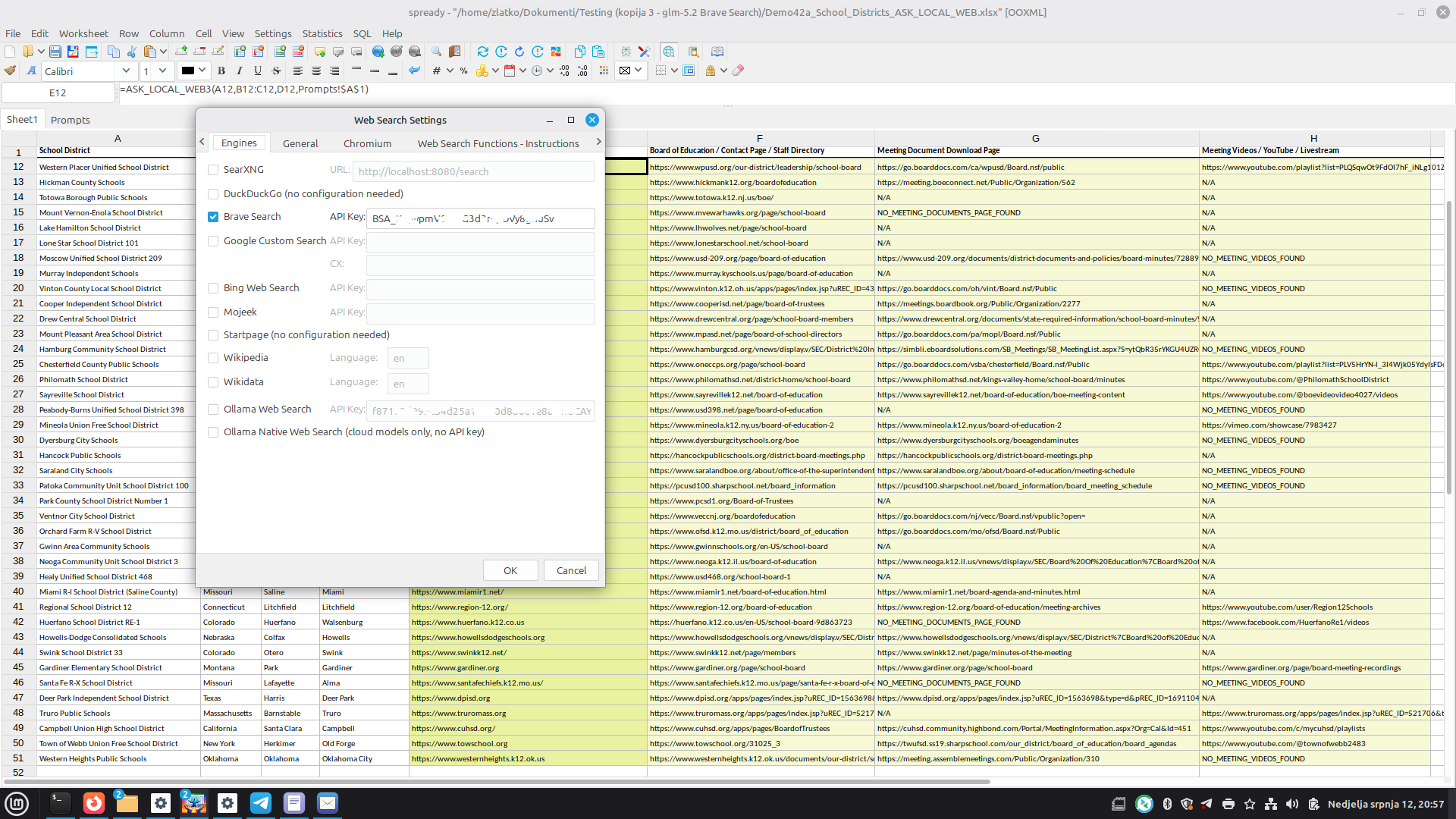
Settings: Only "Brave Search" is enabled, with a valid Brave Search API key entered in the engine configuration. All other engines are disabled.
Web Search Settings -- only Brave Search is enabled.

API tier: Free tier (2,000 queries/month). For higher volumes, paid plans are available. Currently price is $0.005 per query.
Results: The full 50-district × 4-column recalculation completed in 28 hours 32 minutes 28 seconds. All 200 cells were filled with either a valid URL, a N/A marker, or a NO_*_FOUND marker. Zero #APIERR errors were produced — the most stable run of all three engines. Brave Search achieved the highest overall URL yield: 145 out of 200 cells (72%), including a perfect 50/50 on Home Page and a remarkable 13 out of 50 on Meeting Videos — more than triple the video discovery rate of Ollama Web Search. Brave found YouTube channels, Vimeo showcases, and Facebook Live pages that the other engines missed.

Final results with Brave Search -- 28h 32m for 50 districts × 4 columns. Zero #APIERR errors.
Quality summary across 50 districts × 4 columns (200 cells total):
| Output column | Successful URLs | N/A + NO_*_FOUND markers | Hit rate |
|---|---|---|---|
| E -- Home Page | 50 | 0 | 100% |
| F -- Board / Contact / Staff | 48 | 2 (N/A) | 96% |
| G -- Meeting Document Download Page | 34 | 16 (13 N/A + 3 NO_MEETING_DOCUMENTS_PAGE_FOUND) | 68% |
| H -- Meeting Videos / YouTube / Livestream | 13 | 37 (23 N/A + 14 NO_MEETING_VIDEOS_FOUND) | 26% (best of all three engines) |
| Overall | 145 | 55 | 72% (highest) |
Brave Search's standout performance is in the Meeting Videos column: it found 13 YouTube channels, Vimeo showcases, and Facebook Live pages -- more than triple Ollama Web Search's 4 and slightly more than SearXNG's 11. Examples include YouTube channels for Maine School Administrative District 6, Regional School District 18, Western Placer Unified, and Campbell Union High; a Vimeo showcase for Mineola Union Free School District; and a Facebook Live page for Huerfano School District RE-1. Brave also achieved a perfect 50/50 on Home Page discovery -- the only engine to find every single district's official website.
Discussion
Setup complexity: Low. Create a Brave Search API account, copy the API key into Spready's settings, and you're done.
Privacy: Medium. Queries are sent to Brave's API. Brave has a strong privacy track record (they do not profile users), but the data does leave your machine.
Cost: Free for the first 2,000 queries/month. For 50 districts × 4 columns = 200 queries per run, the free tier covers ~10 full runs per month. Beyond that, paid plans start at a few dollars per thousand queries (currently $0.005 per query).
Quality: Excellent. Brave Search achieved the highest overall hit rate (72%) and the best video/livestream discovery (13 URLs vs. 4 for Ollama and 11 for SearXNG). It found YouTube channels, Vimeo showcases, and Facebook Live streams that other engines missed, and achieved a perfect 50/50 on Home Page discovery.
Limitation: The 2,000 query/month free tier is the main constraint. For 50 districts × 4 columns = 200 queries per run, the free tier covers ~10 full runs per month. For production data enrichment pipelines, a paid plan is typically required. Speed is also a consideration: at 28.5 hours for 50 districts, Brave is significantly slower than Ollama Web Search (1h 55m) but dramatically faster than SearXNG (94h 37m).
Engine 3: SearXNG (Self-Hosted Meta-Search)
Settings: Only "SearXNG" is enabled, pointing to http://localhost:8080/search. The "Ollama native web_search" and all other engines are disabled.
Web Search Settings -- only SearXNG is enabled.

SearXNG instance: Self-hosted in Docker on the same machine as Spready. Configuration includes 15+ upstream engines (Google, Bing, DuckDuckGo, Mojeek, Qwant, Startpage, etc.) with JSON format enabled in settings.yml (required for Spready to parse the response).
Results: The full 50-district × 4-column recalculation completed in 94 hours 37 minutes 53 seconds — by far the slowest of the three engines. All 200 cells were filled, but SearXNG produced the lowest overall URL yield: 118 out of 200 cells (59%). It also generated 3 #APIERR errors (socket read failures) and an extraordinary 9,152 Chromium timeouts (each 60 seconds long), which are the primary cause of the extreme runtime. SearXNG returned 111 results per query on average (vs. 10 for Ollama Web Search), but many were irrelevant — FOX News Radio, GitHub repos, tourism sites, and 8kun threads appeared alongside legitimate school district pages. The model had to filter through this noise, which increased both processing time and the likelihood of missing the correct result. On the positive side, SearXNG did find 11 video/livestream URLs (comparable to Brave's 13), including unique Facebook Live discoveries for Drew Central and Ventnor school districts.
Final results with SearXNG -- 94h 37m for 50 districts × 4 columns. The slowest engine by far.
Quality summary across 50 districts × 4 columns (200 cells total):
| Output column | Successful URLs | N/A + NO_*_FOUND markers | Hit rate |
|---|---|---|---|
| E -- Home Page | 38 | 12 (10 N/A + 1 NO_HOMEPAGE_FOUND + 1 #APIERR) | 76% |
| F -- Board / Contact / Staff | 38 | 12 (11 N/A + 1 #APIERR) | 76% |
| G -- Meeting Document Download Page | 31 | 19 (15 N/A + 4 NO_MEETING_DOCUMENTS_PAGE_FOUND) | 62% |
| H -- Meeting Videos / YouTube / Livestream | 11 | 39 (18 N/A + 20 NO_MEETING_VIDEOS_FOUND + 1 #APIERR) | 22% |
| Overall | 118 | 82 | 59% (lowest) |
SearXNG's 59% overall hit rate is the lowest of the three engines, driven primarily by its poor Home Page discovery (38/50, vs. 50/50 for Brave and 49/50 for Ollama). The 94-hour runtime was caused by 9,152 Chromium timeouts (each 60 seconds long) and 522 retries. SearXNG returned an average of 111 results per query -- far more than Ollama Web Search's 10 -- but many were irrelevant noise (FOX News Radio, GitHub repositories, tourism sites, 8kun threads). The model had to filter through this noise, which increased both processing time and the likelihood of missing the correct result. On the positive side, SearXNG did find 11 video/livestream URLs (comparable to Brave's 13), including unique Facebook Live discoveries for Drew Central School District and Ventnor City School District that Brave did not find.
Discussion
Setup complexity: Medium. Requires Docker, SearXNG image, settings.yml configuration (with -json format enabled), and a running instance reachable from Spready.
Privacy: High. All search queries and results stay on your machine; no third-party API sees your queries.
Cost: Free. SearXNG is open-source; the only cost is the electricity to run the Docker container.
Quality: Moderate. SearXNG returned 111 results per query on average — far more than Ollama Web Search's 10 — but many were irrelevant (news sites, GitHub, tourism pages, social media). The model had to filter through significant noise, which increased processing time and occasionally led to missed results. The overall 59% hit rate was the lowest of the three engines, and SearXNG failed to find a home page for 12 out of 50 districts (vs. 0 for Brave and 1 for Ollama).
Limitation: Self-hosted means self-maintained. SearXNG instances occasionally hit CAPTCHAs from upstream engines; rate limits may apply. In our test, 9,152 Chromium timeouts and 522 retries were recorded, making SearXNG by far the most operationally demanding engine. The 94-hour runtime for 50 districts makes it impractical for time-sensitive workflows, though it remains the only fully free and fully private option.
Comparative Analysis
| Aspect | Ollama Web Search | Brave Search | SearXNG |
|---|---|---|---|
| Setup time | ~1 minute | ~5 minutes | ~2 hours |
| Recurring cost | Ollama Pro/Max subscription | Free tier / paid | Free (electricity) |
| Privacy | Medium (Ollama cloud) | Medium (Brave cloud) | High (self-hosted) |
| Speed (50 districts × 4 cols) | 1h 55m (measured) | 28h 32m (measured) | 94h 37m (measured) |
| URL yield | 139/200 (70%) (measured) | 145/200 (72%) (measured) | 118/200 (59%) (measured) |
| Video/livestream discovery | 4/50 | 13/50 (best) | 11/50 |
| #APIERR errors | 0 (after recalc) | 0 | 3 |
| Maintenance | None | None | High (9,152 timeouts, 522 retries in test) |
| Scalability | Per Ollama Cloud plan | Per Brave plan | Limited by self-hosted hardware |
Recommendations
Based on the demonstration above and our broader experience, here are our recommendations for choosing a web search engine in (Un)Perplexed Spready v1.2.6.
Primary Recommendation: Ollama Web Search
If you already have an Ollama Cloud Pro or Max subscription, Ollama Web Search is the clear winner. It is:
- The fastest to set up -- no separate service, no API key, no configuration beyond a checkbox
- The fastest to run -- 1h 55m for 50 districts, roughly 14× faster than Brave Search and 47× faster than SearXNG
- The lowest maintenance -- no Docker containers to update, no upstream engines to debug
- Cost-effective for Ollama subscribers -- included in your existing subscription
The main trade-off is result quality: at 70% overall URL yield, Ollama Web Search trails Brave Search (72%) and is notably weaker in video/livestream discovery (4 URLs found vs. 13 for Brave). For tasks where finding YouTube channels or Facebook Live streams is important, Brave Search may be the better choice. The only reason not to use Ollama Web Search at all is if you are running Ollama locally (web search is a cloud-only feature) or if you have strict data-residency requirements.
Secondary Recommendation: Brave Search (for Quality and Completeness)
If you want the highest result quality and the best video/livestream discovery, Brave Search is the clear winner. It achieved the highest overall URL yield (72%), a perfect 50/50 on Home Page discovery, and found 13 video/livestream URLs — more than triple Ollama Web Search's 4. The 2,000 queries/month free tier covers about 10 full runs of a 50-district spreadsheet, and paid plans are competitively priced for larger workloads.
The main trade-offs are speed (28.5 hours for 50 districts — significantly slower than Ollama Web Search) and the fact that queries are sent to Brave's servers. If those are acceptable for your use case, Brave Search offers the best balance of quality and simplicity.
Tertiary Recommendation: SearXNG (for Privacy-Conscious Users)
If privacy is paramount and time is not a limiting factor, SearXNG is the most private option. It runs entirely on your hardware, supports dozens of upstream engines, and is fully open-source. No queries ever leave your machine.
The main trade-offs are significant: in our test, SearXNG took 94 hours to process 50 districts (vs. 2 hours for Ollama Web Search), produced the lowest URL yield (59%), and generated 9,152 Chromium timeouts. It also returned 111 results per query — far more than Ollama's 10 — but many were irrelevant noise. SearXNG is best suited for users who value privacy above all else and can afford to wait, or for smaller datasets where the extreme runtime is manageable.
The Trade-Off Triangle
When choosing a web search engine, three factors compete:
Privacy
/\
/ \
/ \
/ \
/________\
Cost Quality
- Ollama Web Search optimizes for Speed (1h 55m, 47× faster than SearXNG) and Cost (included in Ollama subscription)
- SearXNG optimizes for Privacy (high, fully self-hosted) at the expense of Speed (94 hours) and Quality (59%, lowest of the three)
- Brave Search optimizes for Quality (72%, highest URL yield + best video discovery) at the expense of Speed (28.5 hours) and Privacy (queries go to Brave)
Your choice depends on which factor matters most for your specific use case.
Conclusion
Web search in (Un)Perplexed Spready has evolved from a complex three-service middleware stack to a one-click integration with Ollama Web Search.
In this article, we demonstrated the same enrichment task -- adding home pages, board of education pages, meeting document pages, and meeting video links for 50 U.S. school districts -- using three different search engines. The clear winner, for users with an Ollama Cloud Pro or Max subscription, is Ollama Web Search: fastest to set up, fastest to run, and lowest maintenance.
For users without an Ollama Cloud subscription, SearXNG and Brave Search remain excellent options, each with their own trade-offs between privacy, cost, and quality.
We encourage you to try all three engines on your own data and see which one fits your workflow best. The same spreadsheet, the same model, the same prompts -- just toggle a different checkbox in Settings -> Web Search Settings.
Further Reading
Matasoft Articles on Web Search in (Un)Perplexed Spready
- Article #150: (Un)Perplexed Spready with web search enabled Ollama models -- Phase 1: Open WebUI + SearXNG setup on Linux
- Article #152: An example of using (Un)Perplexed Spready in a real life use case - Furniture catalog taxonomy classification -- Phase 2: Matasoft Web Search and Web Reader tools
- Article #156: (Un)Perplexed Spready v1.2.X -- Web Search in (Un)Perplexed Spready -- Phase 3: Native web search with 9 engines
External Documentation
- Ollama Web Search documentation -- Official Ollama docs for the web search feature
- SearXNG documentation -- Self-hosted meta-search engine
- Brave Search API documentation -- Cloud search API with privacy focus
- Open WebUI Tools registry -- Community tools including Matasoft's web_search and web_reader
Other Topics
Download the demonstration spreadsheet Demo42a_School_Districts_ASK_LOCAL_WEB.xlsx and try the formulas yourself. Sign in to the (Un)Perplexed Spready download area to get the file. You can download it here: https://spready.matasoft.hr/
© 2026 Matasoft. All rights reserved. (Un)Perplexed Spready is a product of Matasoft.
- Details
- Written by Super User
- Category: (Un)Perplexed Spready
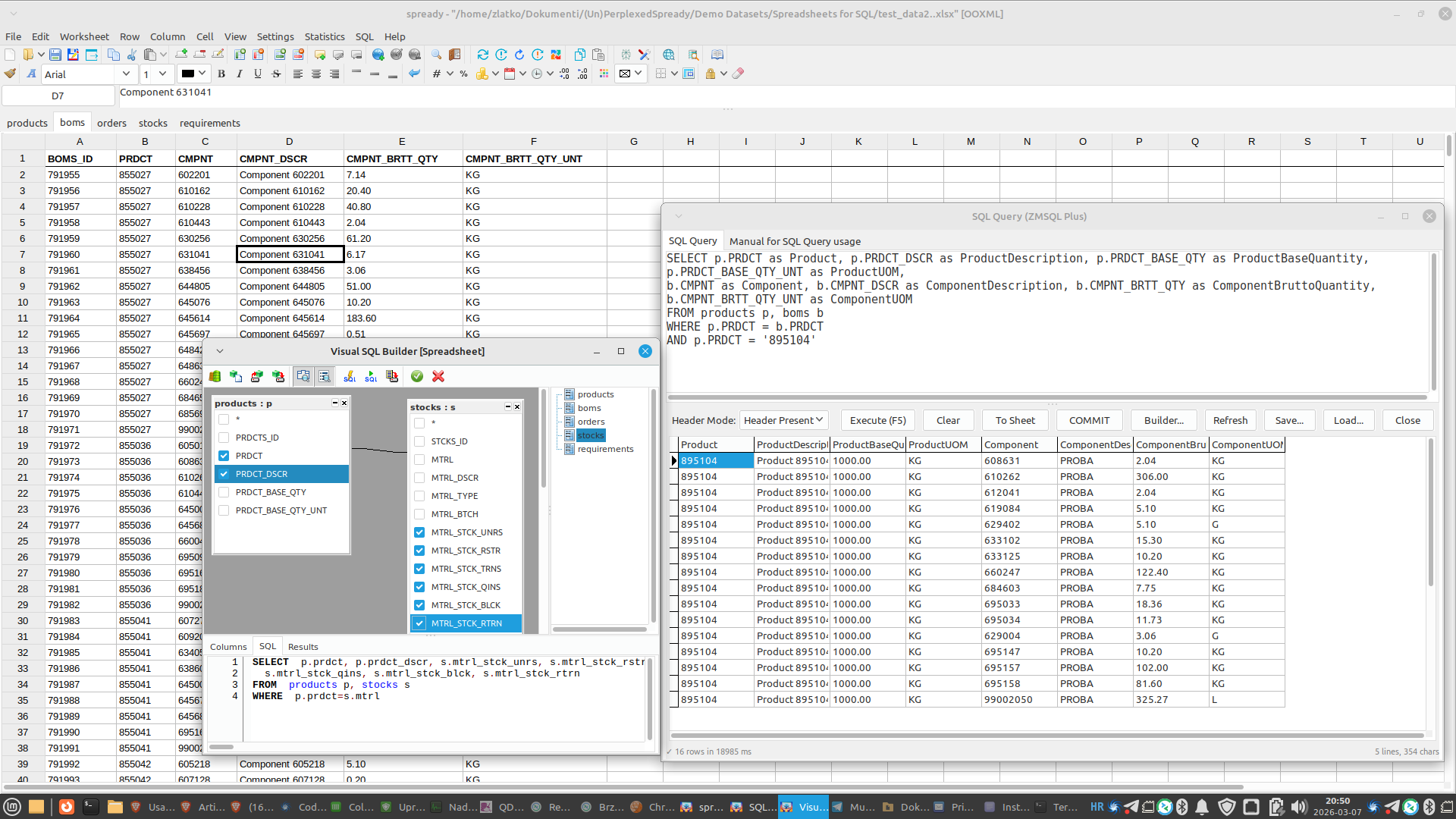
SQL Query in (Un)Perplexed Spready — Your Spreadsheet Is Now a Database
Introduction
(Un)Perplexed Spready is a spreadsheet application that combines the power of traditional spreadsheets with advanced artificial intelligence capabilities. Version 1.2.X represents the biggest leap in the application's history, bringing a range of features that elevate data work to an entirely new level.
This version introduces four major improvement areas: Web Search, Vision & Document Processing, SQL Query, and Advanced Statistics.
Best of all, SQL Query and Advanced Statistics functions are completely free! If you are looking for a free statistical software, you are on the right page!
Spreadsheet applications are excellent for smaller datasets and ad-hoc analyses. But when you need to join data from multiple sheets, filter by complex criteria, or calculate aggregates — traditional formulas become complicated and hard to maintain.
(Un)Perplexed Spready v1.2.X introduces SQL Query functionality — every sheet in your workbook becomes a SQL table, and you can write standard SQL queries for data analysis.
Best of all: SQL Query is FREE — forever!
Workbook-as-Database Architecture
(Un)Perplexed Spready treats your entire workbook as a database:
- Each sheet = One SQL table
- Sheet name = Table name
- First row = Column headers (field names)
- Subsequent rows = Data records

Example:
Sheet "Sales":
| Product | Quantity | Price | Date |
|---|---|---|---|
| Widget A | 100 | 25.00 | 2026-01-15 |
| Widget B | 50 | 40.00 | 2026-01-16 |
SQL query:
SELECT Product, SUM(Quantity) as Total
FROM Sales
GROUP BY Product
ORDER BY Total DESC
How to Use
Opening the SQL Query Window
- Open (Un)Perplexed Spready
- Load or create a workbook with data
- Click Tools → SQL Query from the menu
SQL Query Window Contains:
- SQL Editor (top) — Write and edit SQL queries
- Results Grid (bottom) — Display results
- Toolbar — Quick access to functions
Toolbar Functions:

- Execute (F5) — Run SQL query
- Clear — Clear editor
- Export to Sheet — Export results to new sheet
- Save Query — Save SQL to file (.sql)
- Load Query — Load SQL from file
- Query Builder — Visual query builder
- COMMIT - used for saving update query result back into source spreadsheet
Supported SQL Commands
SELECT — Retrieving Data
-- Basic SELECT
SELECT * FROM Sales
-- Selected columns
SELECT Product, Quantity, Price FROM Sales
-- Filtering
SELECT * FROM Sales WHERE Quantity > 100
-- Sorting
SELECT * FROM Sales ORDER BY Date DESC
-- Limit
SELECT * FROM Sales LIMIT 10
JOIN — Joining Tables
-- Join two sheets
SELECT p.Product, p.Quantity, c.Category
FROM Sales p
JOIN Catalog c ON p.Product = c.Product
-- LEFT JOIN
SELECT p.Product, p.Quantity, c.Category
FROM Sales p
LEFT JOIN Catalog c ON p.Product = c.Product
Aggregations
-- COUNT
SELECT COUNT(*) as Row_Count FROM Sales
-- SUM
SELECT Product, SUM(Quantity) as Total
FROM Sales
GROUP BY Product
-- AVG
SELECT AVG(Price) as Average_Price FROM Sales
-- MIN / MAX
SELECT MIN(Date) as From_Date, MAX(Date) as To_Date FROM Sales
-- GROUP BY with HAVING
SELECT Product, SUM(Quantity) as Total
FROM Sales
GROUP BY Product
HAVING SUM(Quantity) > 100
INSERT, UPDATE, DELETE
-- INSERT
INSERT INTO Sales (Product, Quantity, Price, Date)
VALUES ('Widget D', 75, 30.00, '2026-01-18')
-- UPDATE
UPDATE Sales SET Price = 28.00 WHERE Product = 'Widget A'
-- DELETE
DELETE FROM Sales WHERE Quantity < 50
Important: Changes are executed in memory. To save them permanently, use COMMIT or export results to a new sheet.
Writing Changes to Sheets
All changes are executed in memory, not directly on sheets. For permanent saving:
Option 1: COMMIT
COMMIT
Saves all modified tables back to the workbook.
NOTE: JanSQL was originally designed to work with csv files inside a folder. In order to actually commit changes inside (Un)Perplexed Spready spreadsheet, you need to additionally click "COMMIT" button in GUI. So, two-step commit is reuiqred: commit statement inside SQL commits change to a dataset in memory, while commit button commits it back into underlying spreadsheet file. To persist changes, you also need to save the spreadsheet.

Option 2: SAVE TABLE
SAVE TABLE Results AS New_Sheet
Saves query result as a new sheet.
Option 3: Export to Sheet
Click the Export to Sheet button in the toolbar. Results are saved to a new sheet.
Real-World Examples
Sales Analysis
-- Monthly sales by product
SELECT
Product,
strftime('%Y-%m', Date) as Month,
SUM(Quantity) as Total_Quantity,
SUM(Quantity * Price) as Total_Revenue
FROM Sales
GROUP BY Product, strftime('%Y-%m', Date)
ORDER BY Month, Total_Revenue DESC
Inventory with Catalog
-- Current inventory with product info
SELECT
i.Product,
c.Category,
c.Supplier,
i.Quantity,
i.Quantity * c.Cost_Price as Value
FROM Inventory i
JOIN Catalog c ON i.Product = c.Product
WHERE i.Quantity > 0
ORDER BY Value DESC
Customer 360
-- Complete customer overview
SELECT
c.Name,
c.Surname,
COUNT(o.ID) as Order_Count,
SUM(o.Total) as Total_Spent,
MAX(o.Date) as Last_Order
FROM Customers c
LEFT JOIN Orders o ON c.ID = o.Customer_ID
GROUP BY c.ID
ORDER BY Total_Spent DESC
QC Analysis
-- Defects by line and cause
SELECT
Line,
Cause,
COUNT(*) as Defect_Count,
ROUND(COUNT(*) * 100.0 / (SELECT COUNT(*) FROM Defects), 2) as Percentage
FROM Defects
WHERE Date >= '2026-01-01'
GROUP BY Line, Cause
ORDER BY Defect_Count DESC
SQL Editor Features
Syntax Highlighting
SQL keywords are colored for easier reading:
SELECT,FROM,WHERE— blueAND,OR,NOT— orangeCOUNT,SUM,AVG— green- Strings — red
Auto-Complete
Press Ctrl+Space for:
- SQL keywords
- Table names (sheets)
- Column names
Helper Lists
- Tables list — All available sheets
- Fields list — Columns of selected table
- Operators list — SQL operators
Working with Dates
janSQL does not use strong data types — everything is string. For working with dates, use ISO 8601 format:
- Date:
YYYY-MM-DD(e.g.,2026-03-04) - Date and time:
YYYY-MM-DDThh:mm:ss(e.g.,2026-03-04T14:30:00)
-- Filter by date
SELECT * FROM Sales WHERE Date >= '2026-01-01'
-- Date range
SELECT * FROM Sales
WHERE Date BETWEEN '2026-01-01' AND '2026-01-31'
-- Extract month
SELECT strftime('%Y-%m', Date) as Month FROM Sales
Credits
SQL Query functionality is based on the proven janSQL engine (by Jan Verhoeven, http://jansfreeware.com), the same engine used in ZMSQL package and MightyQuery software.
Thanks to Jan Verhoeven for contributing to the open-source community!
Technical Details
Performance
- In-memory processing — Everything runs in memory for speed
- Semi-compiled expressions — Optimized expression evaluation
- No server required — No need to install a database
Limitations
- Single-user — One user at a time
- No transactions — No ACID transactions
- Limited JOIN types — Basic JOIN types supported
Supported File Formats
- .xlsx — Microsoft Excel
- .ods — LibreOffice/OpenOffice
- .csv — Comma-separated values
Download SQL Query Manual
You can download corresponding manuals here:
https://matasoft.hr/SQL_User_Manual.pdf
https://matasoft.hr/janSql-hlp.pdf
Conclusion
SQL Query in (Un)Perplexed Spready brings the power of SQL directly to your spreadsheet. No server, no configuration, no additional costs.
Whether you need to join data from multiple sheets, filter by complex criteria, or calculate aggregates — SQL does it elegantly and efficiently.
SQL Query in (Un)Perplexed Spready is and will always be FREE!
© 2026 Matasoft.
Further Reading
(Un)Perplexed Spready v1.2.X — A New Chapter in AI-Powered Spreadsheets
Introduction to (Un)Perplexed Spready
Download (Un)Perplexed Spready
Purchase License for (Un)Perplexed Spready
- Details
- Written by Super User
- Category: (Un)Perplexed Spready
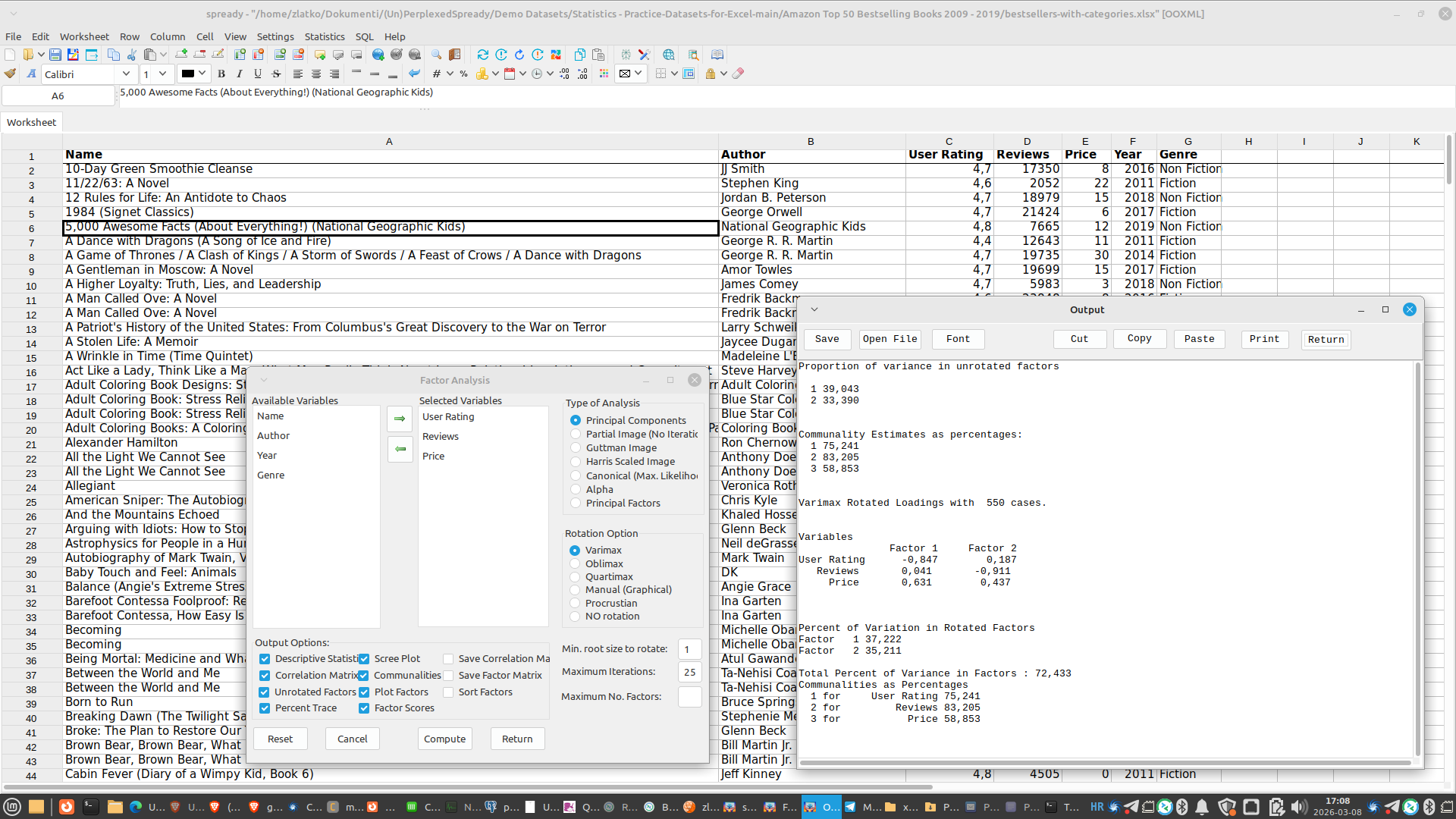
Advanced Statistics in (Un)Perplexed Spready — Professional Statistical Tool for Free
Introduction
(Un)Perplexed Spready is a spreadsheet application that combines the power of traditional spreadsheets with advanced artificial intelligence capabilities. Version 1.2.X represents the biggest leap in the application's history, bringing a range of features that elevate data work to an entirely new level.
This version introduces four major improvement areas: Web Search, Vision & Document Processing, SQL Query, and Advanced Statistics.
Best of all, SQL Query and Advanced Statistics functions are completely free! If you are looking for a free statistical software, you are on the right page!
Statistical analysis is an essential tool in many fields — from scientific research, through business analysis, to production quality control. Professional statistical packages are usually expensive and require separate installation.
(Un)Perplexed Spready v1.2.X integrates TyphonStats (based on LazStats by William G. Miller), a complete statistical package that works directly on data from your sheets — no need to export to CSV or other formats.
Best of all: Statistics is FREE — forever!
What is TyphonStats?
TyphonStats is a completely free, open-source statistical package that includes:
- 130+ statistical procedures
- Descriptive statistics
- Parametric and non-parametric tests
- Regression analysis
- Multivariate analysis
- Statistical Process Control (SPC)
- Measurement and evaluation
- Data visualization
All functions are available directly from the Statistics menu in (Un)Perplexed Spready.


Categories of Statistical Functions
1. Descriptive Statistics
Basic data analysis:
| Function | Description |
|---|---|
| Descriptive Statistics | Measures of central tendency and dispersion |
| Frequency Analysis | Frequency distribution |
| Grouped Frequencies | Grouped frequencies |
| Cross-tabulation | Cross tables |
| Breakdown | Analysis by groups |
| Box Plot | Box-and-whisker diagram |
| Normality Test | Test of distribution normality |
Example: Test results analysis
— Select column with results
— Statistics → Descriptive Statistics
— Get: mean, median, standard deviation, quartiles, etc.
2. Parametric Tests
For data following normal distribution:
| Test | Description |
|---|---|
| One-Sample T-Test | Compare sample with known value |
| Paired T-Test | Compare paired samples |
| Independent T-Test | Compare two independent groups |
| One-Way ANOVA | Compare more than two groups |
| Two-Way ANOVA | Compare with two factor variables |
| Proportion Differences | Compare proportions |
Example: Comparing results of two groups
— Data: column A (group 1), column B (group 2)
— Statistics → Parametric Tests → Independent T-Test
— Result: t-value, p-value, conclusion
3. Non-Parametric Tests
For data not following normal distribution:
| Test | Description |
|---|---|
| Mann-Whitney U | Non-parametric alternative to Independent T-Test |
| Wilcoxon Signed-Rank | Non-parametric alternative to Paired T-Test |
| Kruskal-Wallis | Non-parametric alternative to One-Way ANOVA |
| Spearman Correlation | Non-parametric correlation |
| Chi-Square Goodness of Fit | Test match with expected distribution |
| Chi-Square Independence | Test independence of variables |
| Kendall's Tau | Non-parametric correlation |
Example: Comparing grades (non-normal distribution)
— Data: column A (group 1), column B (group 2)
— Statistics → Non-Parametric → Mann-Whitney U
— Result: U statistic, p-value
4. Correlation and Regression
Analysis of relationships between variables:
| Function | Description |
|---|---|
| Pearson Correlation | Linear correlation |
| Spearman Correlation | Rank correlation |
| Kendall's Tau | Alternative rank correlation |
| Linear Regression | Simple linear regression |
| Multiple Regression | Multiple regression |
| Logistic Regression | Binary logistic regression |
| Forward Stepwise | Stepwise regression (forward) |
| Backward Stepwise | Stepwise regression (backward) |
Example: Sales forecasting
— Data: column A (sales), column B (marketing), column C (price)
— Statistics → Regression → Multiple Regression
— Result: coefficients, R², p-values
5. Multivariate Analysis
Advanced analysis with multiple variables:
| Function | Description |
|---|---|
| MANOVA | Multivariate ANOVA |
| Discriminant Analysis | Discriminant analysis |
| Hierarchical Clustering | Hierarchical clustering |
| K-Means Clustering | K-means clustering |
| Factor Analysis | Factor analysis |
| Path Analysis | Path analysis |
Example: Customer segmentation
— Data: multiple variables (age, income, behavior)
— Statistics → Multivariate → K-Means Clustering
— Result: customer groups with similar characteristics
6. Statistical Process Control (SPC)
For quality control in production:
| Chart | Description |
|---|---|
| X-Bar Chart | Control chart for mean values |
| R Chart | Control chart for range |
| S Chart | Control chart for standard deviation |
| CUSUM | Cumulative sum |
| C Chart | Control chart for defect count |
| P Chart | Control chart for proportion |
Example: Monitoring production quality
— Data: sample measurements over time
— Statistics → SPC → X-Bar Chart
— Result: control chart with limits
How to Use
Basic Workflow
- Prepare data — Data should be in columns on a single sheet
- Select Statistics menu — Choose desired statistical function
- Configure analysis — Select variables, settings, etc.
- Run analysis — Click OK
- Review results — Results appear in output window
Data Transfer
TyphonStats automatically transfers data from the active sheet:
- First row is used as variable names
- Data is analyzed by columns
- No need to export to CSV
Credits
TyphonStats/LazStats was developed by William G. Miller and is distributed as open-source software.
All credit for statistical algorithms and implementation goes to William G. Miller.
Matasoft integrated TyphonStats into (Un)Perplexed Spready with full respect for the original author and open-source community.
Comparison with Other Tools
| Tool | Price | Statistics | Built-in | Offline |
|---|---|---|---|---|
| (Un)Perplexed Spready | Free | 130+ functions | ✅ | ✅ |
| SPSS | ~$100/month | Advanced | ❌ | ✅ |
| Minitab | ~$50/month | Advanced | ❌ | ✅ |
| R | Free | Complete | ❌ | ✅ |
| Python + libraries | Free | Complete | ❌ | ✅ |
Download LazStats (TyphonStats) User Manual
TyphonStats (LazStats) by Bill Miller is complex and comprehensive statistical tool which numerous functions and options cannot be covered in one article. If you want to learn more about it, please read the LazStats User Manual which you can download here: https://matasoft.hr/User_Manual_for_LazStats.pdf
Conclusion
Statistical analysis in (Un)Perplexed Spready brings professional statistical tools directly to your spreadsheet. No additional costs, no separate installation, no data export.
Whether you're a researcher, analyst, or quality engineer — you have the power of statistics at your fingertips.
Statistics is and will always be FREE!
© 2026 Matasoft.
TyphonStats/LazStats by William G. Miller
Further Reading
(Un)Perplexed Spready v1.2.X — A New Chapter in AI-Powered Spreadsheets
Introduction to (Un)Perplexed Spready
Download (Un)Perplexed Spready
Purchase License for (Un)Perplexed Spready
Page 1 of 9
- You are here:
-
Home

- (Un)Perplexed Spready