Try (Un)Perplexed Spready for Free: AI Spreadsheets Without Barriers
Introduction
At Matasoft, we have always believed that the best way to understand a tool is to use it on your own data. Demos and tutorials are helpful, but nothing beats the moment when you type a formula into your own spreadsheet and watch an AI model fetch, analyse, and summarise real information right before your eyes.
Until now, trying (Un)Perplexed Spready's AI features required either a license key or a local Ollama installation. With version 1.3.0, that changes. We are introducing a freemium tier that lets anyone use the full set of AI spreadsheet formulas -- without a license, without a credit card, and without any software installation beyond (Un)Perplexed Spready itself.
In this article, we explain what the freemium tier includes, how it works, and the two paths you can take to start experimenting today -- one for users who want to install their own local AI model, and one for users who just want to type a formula and see results immediately.
What Is the Freemium Tier?
Starting with version 1.3.0, (Un)Perplexed Spready no longer blocks AI formulas when no license key is present. Instead, unlicensed users receive a daily quota of 500 AI calculations -- completely free of charge. Once the quota is reached, formulas return a clear #LIMIT message indicating that the daily limit has been reached. The counter resets automatically at midnight.
A new status bar at the bottom of the main window shows your current usage in real time:
Free tier: 47/500 AI calculations today-- normal usageFree tier: 460/500 — approaching daily limit-- when you reach 90%License: Active (unlimited)-- after you enter a license key
When you enter a valid license key (via Help → About → Enter License), the quota is removed entirely and the status bar switches to License: Active (unlimited). Spready will also offer to recalculate any cells that previously returned #LIMIT so you can pick up right where you left off.
Which formulas are included? All of them. The freemium quota covers every AI-powered formula family:
=PERPLEXITY1/2/3/4/5()-- Perplexity AI (up to 5 input ranges)=ASK_LOCAL1/2/3/4/5()-- locally installed AI models (up to 5 input ranges)=ASK_REMOTE1/2/3/4/5()-- AI model hosted on Matasoft's server (up to 5 input ranges)=ASK_LOCAL_WEB1/2/3/4/5()-- local AI with web search (up to 5 input ranges)=ASK_REMOTE_WEB1/2/3/4/5()-- remote AI with web search (up to 5 input ranges)=WEBSEARCH()/=WEBSEARCH1()-- direct web search with AI summarisation
Every formula that a licensed user can run, a free-tier user can run too -- just with the daily limit.
Two Paths to Get Started
There are two ways to power the AI formulas in (Un)Perplexed Spready. You can use either one -- or both -- depending on your needs and technical comfort level.
| Path | Formula Family | What You Need | Best For |
|---|---|---|---|
| Path 1: Bring Your Own AI | =ASK_LOCAL*()=ASK_LOCAL_WEB*() |
Install Ollama on your computer and download any model that fits your hardware (Mistral 7B, DeepSeek, Llama, GLM, and many more). Point Spready at localhost:11434 in Settings → Ask Local API Settings. |
Privacy-conscious users, developers, and anyone who wants full control over the model, the data, and the cost. Everything runs on your machine -- no data ever leaves your computer. |
| Path 2: Use Our Server | =ASK_REMOTE*()=ASK_REMOTE_WEB*() |
Nothing. No Ollama installation, no API keys, no configuration. The =ASK_REMOTE formulas are pre-configured to use an AI model hosted on Matasoft's server, accessible over a secure HTTPS connection. Just type the formula and press Enter. |
Users who want to evaluate the product instantly -- zero setup, zero installation, zero cost. Perfect for trying the demo spreadsheets and exploring what AI-powered spreadsheets can do. |
Path 1: Install Your Own Ollama (ASK_LOCAL)
If you want full control -- and you are comfortable installing software on your machine -- this is the path for you. Ollama is a free, open-source tool that runs AI models locally. Installation takes minutes:
- Download Ollama from https://ollama.com/ (available for Windows, macOS, and Linux)
- Open a terminal and run:
ollama pull mistral7b(or any model you prefer) - In (Un)Perplexed Spready, go to Settings → Ask Local API Settings and confirm the URL is set to
http://localhost:11434/api/chat - Type
=ASK_LOCAL1(A2, "Summarise this in one sentence")in any cell
That's it. The model runs entirely on your computer. No internet connection is required for the AI itself (only for web search formulas). Your data never leaves your machine. And thanks to the freemium tier, you can do this up to 500 times per day without a license.
Modern small models like Mistral 7B, DeepSeek-1:7B, and Llama can run even on modest hardware. Ollama handles the model lifecycle -- you just pull a model and start using it.
Path 2: Use Our Server, No Installation Required (ASK_REMOTE)
If you just want to see what an AI-powered spreadsheet can do -- without installing anything beyond (Un)Perplexed Spready itself -- the =ASK_REMOTE family is your starting point.
These formulas are pre-configured to use an AI model hosted on Matasoft's server. The connection is encrypted via HTTPS. You do not need an API key, you do not need to configure any settings, and you do not need to install Ollama or any other software. Just type the formula:
=ASK_REMOTE1(A2, "What industry does this company operate in?")
Press Enter, and the cell will display the AI's answer within seconds. The =ASK_REMOTE_WEB variants add web search capability -- the model can search the internet for up-to-date information before answering.
Note: The Matasoft-hosted model is intended for evaluation and testing, not for production workloads. The hosting server has limited hardware, so calculations may be slower than a local model. For sustained use, we recommend installing your own Ollama (Path 1) or subscribing to Ollama Cloud.
How the Daily Quota Works
The freemium quota is designed to be generous enough for genuine evaluation while preventing automated abuse. Here are the details:
| Aspect | Detail |
|---|---|
| Daily limit | 500 AI calculations per day (resets at midnight, local time) |
| What counts as one calculation? | Each formula evaluation that reaches the AI model counts as one. Deferred calculations (when Defer Calculation is enabled) do not consume quota. Formula errors and argument-validation failures do not consume quota. |
| What happens at the limit? | The cell shows #LIMIT: Daily free limit reached (500 AI calculations per day). Please upgrade to premium for unlimited usage. |
| Quota tracking | The counter is stored locally in a usage file on your machine. It is not sent to any server. A checksum protects against manual tampering. |
| Licensed users | No quota. Licensed users have unlimited AI calculations with no daily limit. |
When you open a spreadsheet with many AI formulas, Spready's Defer Calculation feature is active by default. This means formulas are not evaluated automatically on file open -- they wait for you to trigger a recalculation explicitly. This prevents accidentally consuming your entire daily quota when opening a large spreadsheet.
What About Web Search?
Web search formulas (=ASK_LOCAL_WEB, =ASK_REMOTE_WEB, and =WEBSEARCH) are also included in the freemium tier. Each web-search-enabled formula evaluation counts as one calculation against your daily quota.
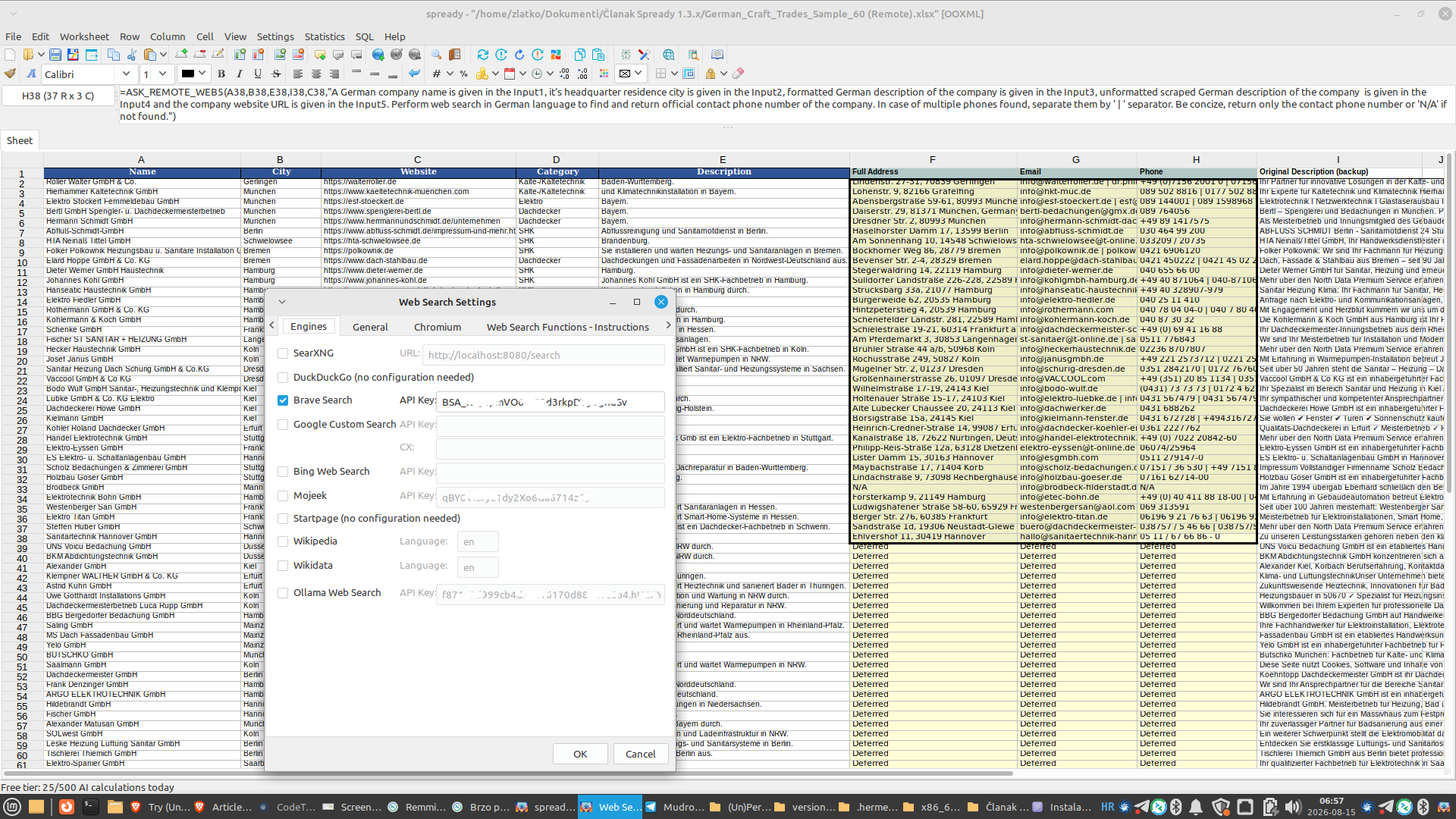
For =ASK_LOCAL_WEB formulas, you will need to configure at least one web search engine in Settings → Web Search Settings. Spready supports nine built-in engines (SearXNG, Brave Search, DuckDuckGo, Google CSE, Bing, Mojeek, Startpage, Wikipedia, and Wikidata), plus Ollama Web Search for Ollama Cloud subscribers. Read our previous article for a detailed comparison: Web Search Features in (Un)Perplexed Spready.
For =ASK_REMOTE_WEB formulas, web search is handled on the Matasoft server side -- no additional configuration needed.
Demonstration: Enriching German Craft Trades Data with =ASK_LOCAL_WEB5 and =ASK_REMOTE_WEB5
To show how the freemium tier works in practice, we prepared a demonstration spreadsheet containing 60 German craft trade companies -- real businesses from trades such as refrigeration, electrical, roofing, plumbing, and HVAC. The goal: enrich each company's record with its full physical address, email contact, and phone number, using only the company name, city, website URL, and two description fields as input.
We ran the same spreadsheet twice -- once with =ASK_LOCAL_WEB5 (using a locally installed Ollama model) and once with =ASK_REMOTE_WEB5 (using the Matasoft-hosted model). Both variants produced identical results -- the only difference was the AI endpoint.
Screenshot with locally installed Ollama and ASK_LOCAL_WEB formulas used: 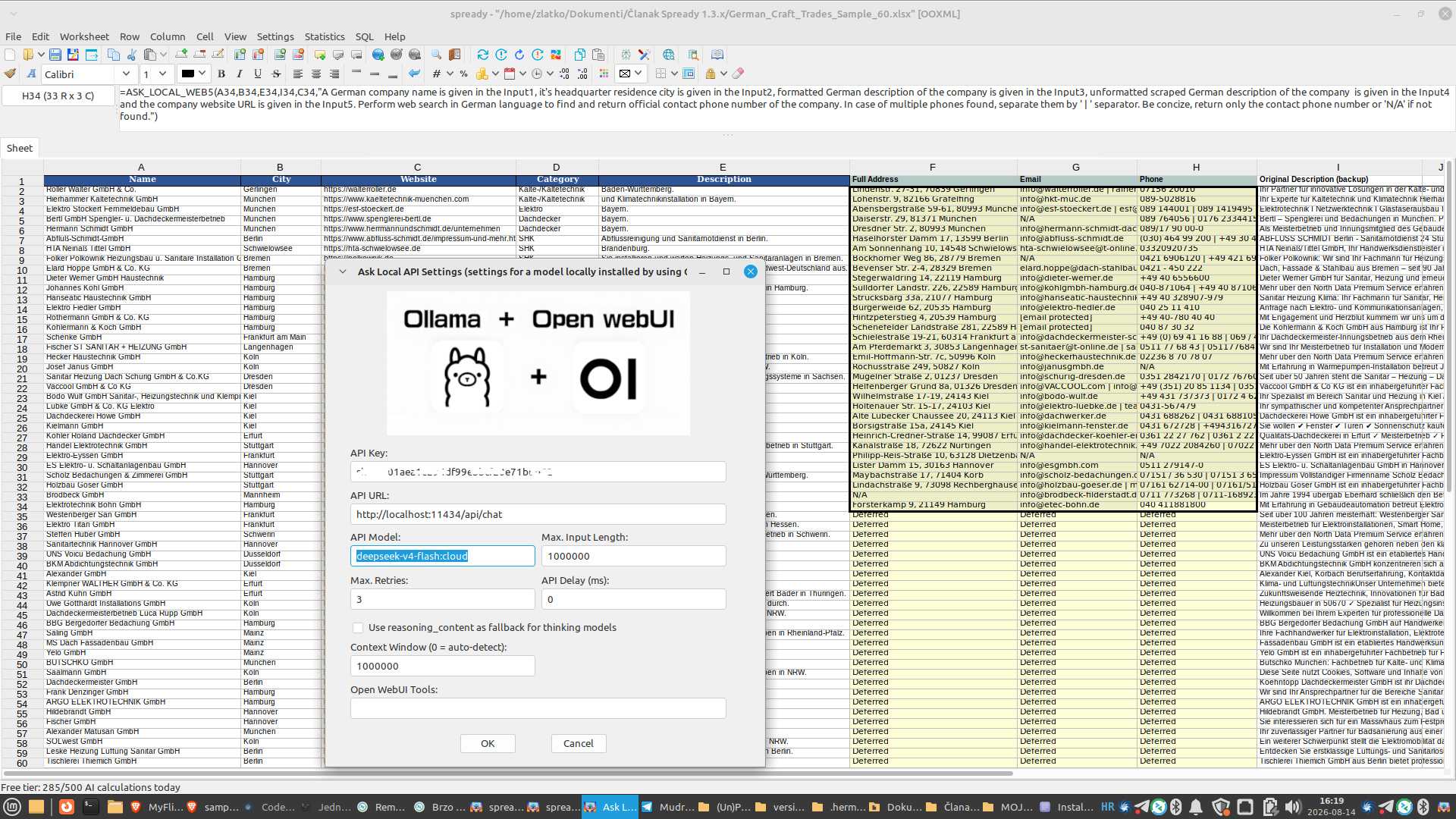
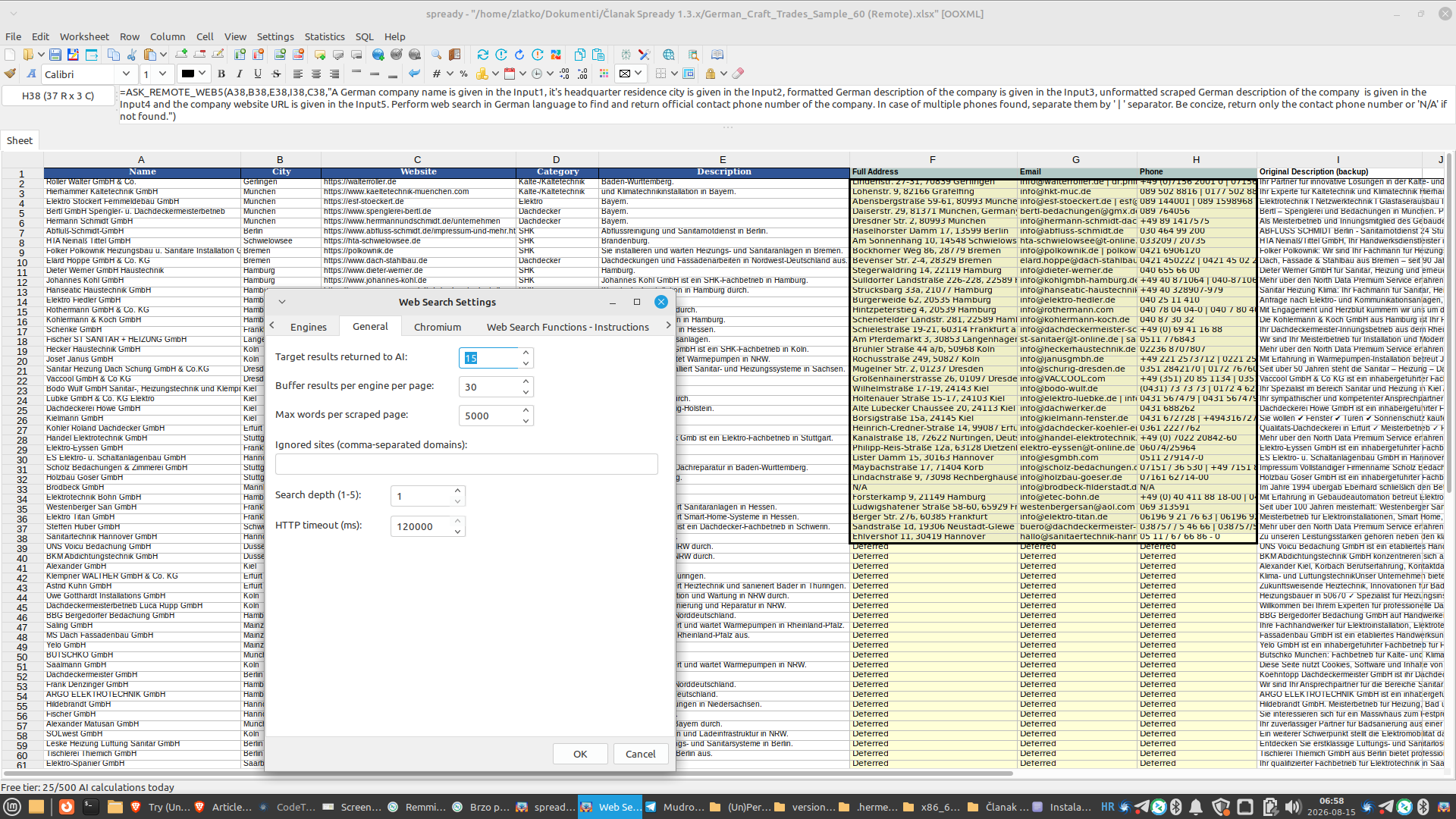
Screenshot with ASK_REMOTE_WEB formulas used (Ollama installed on our server):
The Spreadsheet Structure
The spreadsheet contains 60 rows (one per company) and 9 columns:
| Column | Header | Source |
|---|---|---|
| A | Name | User input -- company name (e.g., Roller Walter GmbH & Co.) |
| B | City | User input -- headquarters city (e.g., Gerlingen) |
| C | Website | User input -- known website URL (e.g., https://walterroller.de) |
| D | Category | User input -- trade category (e.g., Kälte-/Kältetechnik) |
| E | Description | User input -- formatted German company description |
| F | Full Address | AI-generated -- formula in column F |
| G | AI-generated -- formula in column G | |
| H | Phone | AI-generated -- formula in column H |
| I | Original Description (backup) | User input -- raw scraped German description (unformatted) |
The Formulas
Columns F, G, and H each contain an AI formula that passes five input ranges to the model. This is the =ASK_LOCAL_WEB5 variant -- the highest-input formula in the family, accepting up to 5 cell ranges plus a prompt string:
Column F -- Full Address (ASK_LOCAL_WEB5)
=ASK_LOCAL_WEB5(A2, B2, E2, I2, C2,
  "A German company name is given in the Input1, it's headquarter residence city
   is given in the Input2, formatted German description of the company is given
   in the Input3, unformatted scraped German description of the company is given
   in the Input4 and the company website URL is given in the Input5.
   Perform web search in German language to find and return official physical
   address of the company headquarter. Be concise, return only the full physical
   address of the company or 'N/A' if not found.")
Column G -- Email (ASK_LOCAL_WEB5)
=ASK_LOCAL_WEB5(A2, B2, E2, I2, C2,
  "A German company name is given in the Input1, it's headquarter residence city
   is given in the Input2, formatted German description of the company is given
   in the Input3, unformatted scraped German description of the company is given
   in the Input4 and the company website URL is given in the Input5.
   Perform web search in German language to find and return official email contact
   of the company. In case of multiple emails found, separate them by ' | '
   separator. Be concise, return only the contact email accounts or 'N/A' if
   not found.")
Column H -- Phone (ASK_LOCAL_WEB5)
=ASK_LOCAL_WEB5(A2, B2, E2, I2, C2,
  "A German company name is given in the Input1, it's headquarter residence city
   is given in the Input2, formatted German description of the company is given
   in the Input3, unformatted scraped German description of the company is given
   in the Input4 and the company website URL is given in the Input5.
   Perform web search in German language to find and return official contact
   phone number of the company. In case of multiple phones found, separate them
   by ' | ' separator. Be concise, return only the contact phone number or 'N/A'
   if not found.")
Remote Variant -- =ASK_REMOTE_WEB5
The =ASK_REMOTE_WEB5 variant uses exactly the same syntax -- the only difference is the formula name. Simply replace ASK_LOCAL_WEB5 with ASK_REMOTE_WEB5 and the formulas will run against the Matasoft-hosted AI model instead of your local Ollama:
=ASK_REMOTE_WEB5(A2, B2, E2, I2, C2,
  "A German company name is given in the Input1, ...")
Understanding the Five Input Parameters
The =ASK_LOCAL_WEB5 and =ASK_REMOTE_WEB5 formulas accept five cell ranges followed by a prompt string. The model receives each range as a numbered input (Input1 through Input5) and can use all of them to decide whether a web search is needed and how to interpret the results:
| Parameter | Cell Range | Content |
|---|---|---|
| Input1 | A2 |
Company name -- the entity to look up (e.g., Roller Walter GmbH & Co.) |
| Input2 | B2 |
City -- headquarters location (e.g., Gerlingen) |
| Input3 | E2 |
Formatted description -- a clean, human-readable German company description |
| Input4 | I2 |
Original description -- raw scraped text from the company's website (unformatted) |
| Input5 | C2 |
Website URL -- the company's known homepage (e.g., https://walterroller.de) |
| Prompt | string literal | Instruction telling the AI what to search for and how to format the result |
Why five inputs? Because a company name alone is often ambiguous -- there may be dozens of businesses called Schmidt GmbH in Germany. By providing the city, both descriptions, and the website URL, the model can construct a precise search query and disambiguate results that match multiple entities. The model decides for itself whether a web search is needed -- if the answer is already available from the provided context, it can skip the search and answer directly.
How to Run This Demonstration Yourself
With the freemium tier, you can run this entire demonstration for free:
- Option A (zero setup): Download the Remote variant of the spreadsheet, open it in (Un)Perplexed Spready, and trigger a recalculation. The
=ASK_REMOTE_WEB5formulas will run against the Matasoft-hosted AI model. No Ollama installation needed. - Option B (your own AI): Download the Local variant, install Ollama with any model, and run the
=ASK_LOCAL_WEB5formulas. Everything runs on your machine.
With 60 companies × 3 formula columns = 180 AI calculations, this demonstration fits comfortably within the free daily quota of 500.
Ready to Try?
Getting started takes less than five minutes:
- Get (Un)Perplexed Spready -- you have two options:
- Download the desktop application and install it on your computer (Windows or Linux): https://matasoft.hr/QTrendControl/index.php/un-perplexed-spready/un-perplexed-spready-download
- Try online in your browser -- no installation required, use the web-hosted version of (Un)Perplexed Spready directly: https://spready.matasoft.hr/
- Install and launch the application. No license key required -- the freemium tier is active by default.
- Try a formula -- pick whichever path suits you:
- Zero setup: Type
=ASK_REMOTE1(A2, "What does this company do?")and press Enter - With your own AI: Install Ollama, then type
=ASK_LOCAL1(A2, "What does this company do?")and press Enter - Watch the status bar at the bottom of the window to track your remaining daily calculations.
- When you're ready for unlimited usage, purchase a license key from https://spready.matasoft.hr/ and enter it via Help → About → Enter License.
Conclusion
Version 1.3.0 removes the last barrier between you and AI-powered spreadsheets. Whether you want to run models privately on your own hardware with =ASK_LOCAL, or just type a formula and see results with =ASK_REMOTE -- you can start today, for free, with 500 AI calculations every day.
We can't wait to see what you build with it.
Further Reading
Matasoft Articles on (Un)Perplexed Spready
- Article #161: (Un)Perplexed Spready -- Native Web Search Explained and Demonstrated -- Web search engines, formula families, and practical comparison
- Article #150: (Un)Perplexed Spready with web search enabled Ollama models -- Phase 1: Open WebUI + SearXNG setup on Linux
- Article #152: An example of using (Un)Perplexed Spready in a real life use case - Furniture catalog taxonomy classification -- Phase 2: Matasoft Web Search and Web Reader tools
- Article #156: (Un)Perplexed Spready v1.2.X -- Web Search in (Un)Perplexed Spready -- Phase 3: Native web search with 9 engines
- Web Search Features in (Un)Perplexed Spready -- Phase 4: Ollama Web Search engine and expanded inputs
External Resources
- Ollama -- Download and install local AI models
- Ollama documentation -- Model management, API reference
Other Topics
Download (Un)Perplexed Spready v1.3.0 and start experimenting today. No license required -- just install and type a formula. Get it here: https://matasoft.hr/QTrendControl/index.php/un-perplexed-spready/un-perplexed-spready-download or try it online at https://spready.matasoft.hr/
© 2026 Matasoft. All rights reserved. (Un)Perplexed Spready is a product of Matasoft.