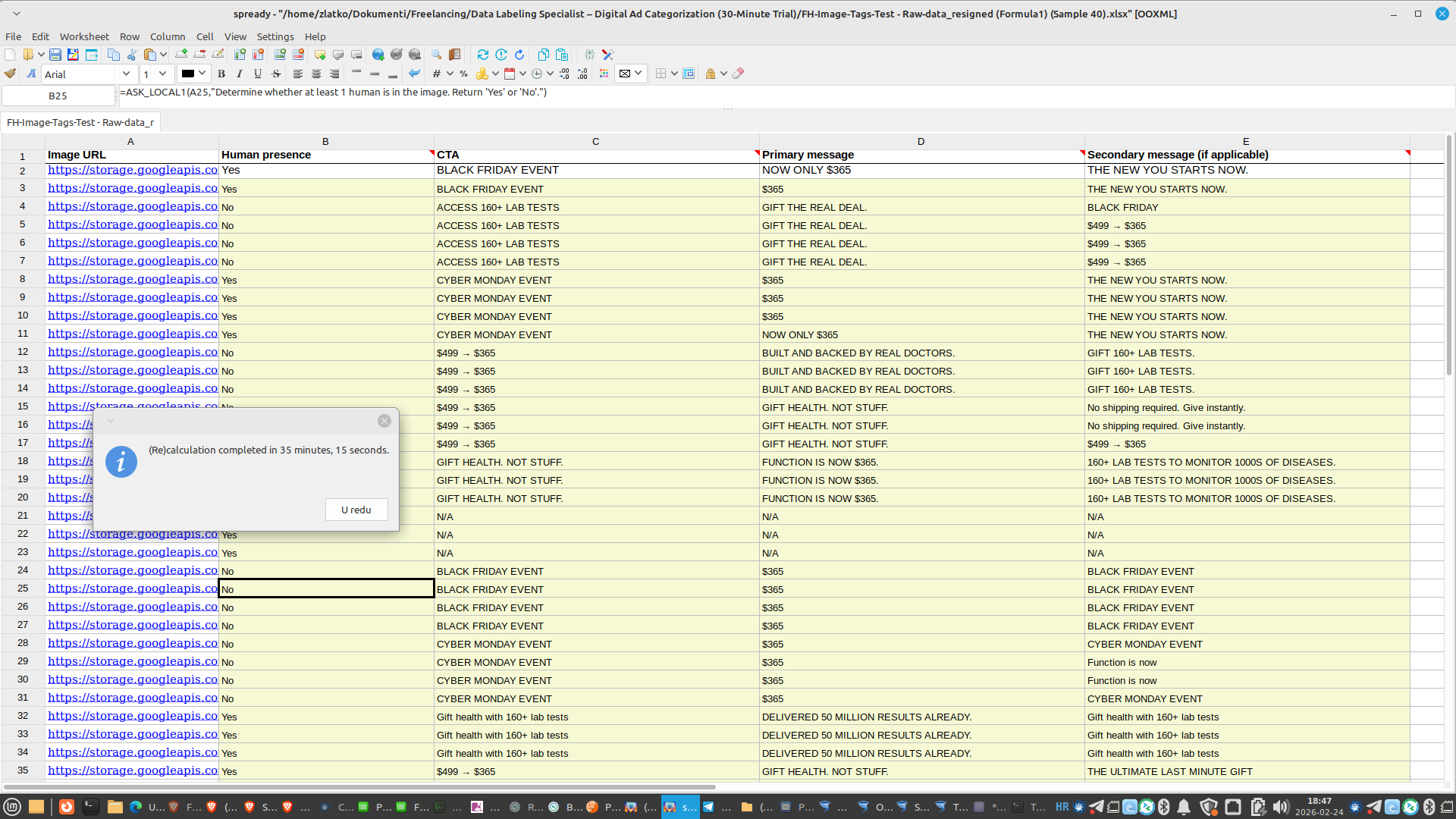
Vision in (Un)Perplexed Spready — Analyze Images Directly in Your Spreadsheet
Introduction
(Un)Perplexed Spready is a spreadsheet application that combines the power of traditional spreadsheets with advanced artificial intelligence capabilities. Version 1.2.X represents the biggest leap in the application's history, bringing a range of features that elevate data work to an entirely new level.
This version introduces four major improvement areas: Web Search, Vision & Document Processing, SQL Query, and Advanced Statistics.
Best of all, SQL Query and Advanced Statistics functions are completely free! If you are looking for a free statistical software, you are on the right page!
Spreadsheet applications traditionally work with numbers and text. But in the real world, many data come in visual form — charts, tables, receipts, documents, product photos, logos, diagrams...
(Un)Perplexed Spready v1.2.X introduces Vision functionality — the ability to bring images into AI context directly from formulas in your spreadsheet. Source of images can be local folder or an URL.
How It Works
Vision functionality uses Vision LLM models (such as qwen3-vl, llama3.2-vision, etc.) that can "see" and analyze images. You simply specify the path to an image (local or URL) in a formula, and the AI analyzes the content and returns the result to the cell.
At the moment of writing this article, we can recommend usage of qwen3-vl:235b-cloud model available in Ollama Cloud.


Basic syntax:
=ASK_LOCAL1("/path/to/image.png", "instruction")
=ASK_LOCAL1("https://example.com/image.jpg", "instruction")
Supported Image Formats
| Format | Extensions | Notes |
|---|---|---|
| JPEG | .jpg, .jpeg | Most common format |
| PNG | .png | Lossless, transparency |
| WebP | .webp | Modern format, good compression |
| GIF | .gif | Animated images supported |
| BMP | .bmp | Windows bitmap |
Usage Methods
1. Local Images
Images stored on your computer:
=ASK_LOCAL1("/home/user/Documents/receipt.png", "Extract total amount from this receipt")
=ASK_LOCAL1("C:\Users\User\Pictures\chart.png", "Analyze this chart and describe trends")
=ASK_LOCAL1("./data/table.png", "Convert this table to structured format")
2. Online Images (HTTP/HTTPS URLs)
Images from the internet:
=ASK_LOCAL1("https://example.com/product.jpg", "Describe this product")
=ASK_LOCAL1("https://charts.example.com/sales.png", "Analyze this sales chart")
3. Combining with Other Data
=ASK_LOCAL2(A2, "/path/to/product.png", "Compare the description in A2 with the product image")
=ASK_LOCAL3(A2, B2, "https://example.com/chart.png", "Analyze chart in context of data in A2 and B2")
Practical Applications
Receipt and Document Analysis
=ASK_LOCAL1("/scan/receipt_001.jpg", "Extract: date, store, total amount")
=ASK_LOCAL1("/invoices/invoice.pdf_page1.png", "Extract invoice number, customer, and amount")
Reading Tables and Charts
=ASK_LOCAL1("/reports/chart.png", "Read values from this chart and list them")
=ASK_LOCAL1("/data/table.png", "Convert this table to CSV format")
Product Categorization
=ASK_LOCAL1("/products/item_001.jpg", "Categorize this product: category, subcategory, color")
=ASK_LOCAL1("https://shop.com/product_123.jpg", "Describe product: name, features, price if visible")
Document Analysis
=ASK_LOCAL1("/docs/id_card.jpg", "Extract: name, surname, ID number (mask last 3 digits)")
=ASK_LOCAL1("/contracts/contract_page1.png", "Summarize main points of this contract")
QC and Inspection
=ASK_LOCAL1("/qc/sample_001.jpg", "Assess quality: are there visible defects?")
=ASK_LOCAL1("/production/widget_123.jpg", "Check: is this product correct?")
Cross-Sheet Range with Images
You can combine images with range data from other sheets:
=ASK_LOCAL2("/products/batch_001.jpg", "RANGE:Products!A2:A50", "Compare image with product list and identify which one is in the image")
Configuration
Required Models
Vision functionality requires a Vision LLM model that supports image processing.
Recommended models:
- qwen3-vl — Excellent for OCR and document analysis
- llama3.2-vision — Good balance of speed and quality
- llava — Open-source vision model
- minicpm-v — Fast and efficient
- kimi-k2.5
- qwen3.5:397b
Installing models (Ollama):
ollama pull qwen3-vl
ollama pull llama3.2-vision
Settings > AskLocal Settings
- API Endpoint: URL of your Ollama server (usually http://localhost:11434)
- Model: Vision model (e.g., qwen3-vl)
- API Key: If required
Limitations
Image Size
- Recommended size: up to 2048x2048 pixels
- Larger images are automatically scaled
- Very large images may cause timeout
Number of Images
- One image per formula
- For multiple images, use multiple formulas
Real-World Examples
Data Entry Automation
You have a folder with scanned receipts:
Cell A1: =ASK_LOCAL1("/receipts/001.jpg", "Date")
Cell B1: =ASK_LOCAL1("/receipts/001.jpg", "Store")
Cell C1: =ASK_LOCAL1("/receipts/001.jpg", "Total amount")
Tips for Best Results
- Use clear instructions — The more precise your question, the better the answer
- Be specific — Specify exactly what you want to extract
- Control the format — Request JSON, CSV, or tabular format
- Use quality images — Clear images give better results
- Choose the right model — qwen3-vl is excellent for documents, llama3.2-vision for general analysis
Error Messages
| Error | Meaning |
|---|---|
| FILE NOT FOUND | Image does not exist at the specified path |
| INVALID IMAGE | Image format is not supported |
| APIERR | Model not available or does not support vision |
| TIMEOUT | Image too large or server overloaded |
Privacy and Security
- Local models: Images stay on your computer
- Remote models: Images are sent to remote server
Conclusion
Vision functionality in (Un)Perplexed Spready opens the door to an entirely new way of working with data. You are no longer limited to text and numbers — you can now analyze visual content directly in your spreadsheet.
Whether you're processing receipts, reading tables from photos, categorizing products, or analyzing charts — Vision formulas give you the power of AI vision at your fingertips.
Vision is a PREMIUM feature. Requires Vision LLM model (local or cloud).
© 2026 Matasoft.
Further Reading
(Un)Perplexed Spready v1.2.X — A New Chapter in AI-Powered Spreadsheets
Introduction to (Un)Perplexed Spready
Download (Un)Perplexed Spready
Purchase License for (Un)Perplexed Spready